

WIE MAN SMARTERS IPTV EINRICHTET
Step 1: Once the app is installed, open the IPTV Smarters Pro app and click on “Add New User”.
Step 2: Now you need to log in to the app. There are two ways to do this: either by using the M3U playlist or by using the username and password that are the Xtream Codes API credentials.
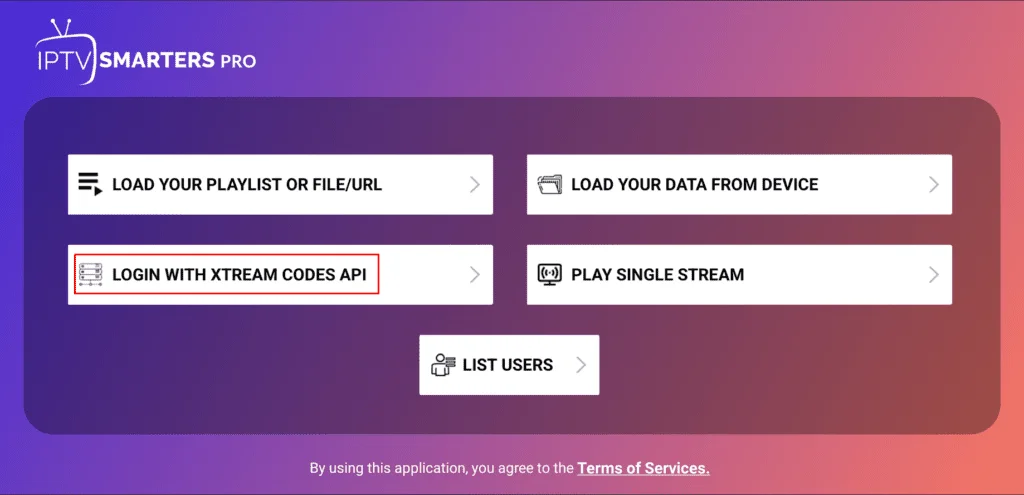
Easily set up Get Xtreme IPTV on IPTV Smarters Pro – use the Xtream Codes API or an M3U playlist.
You can find your username and password in the login information we sent you via email.
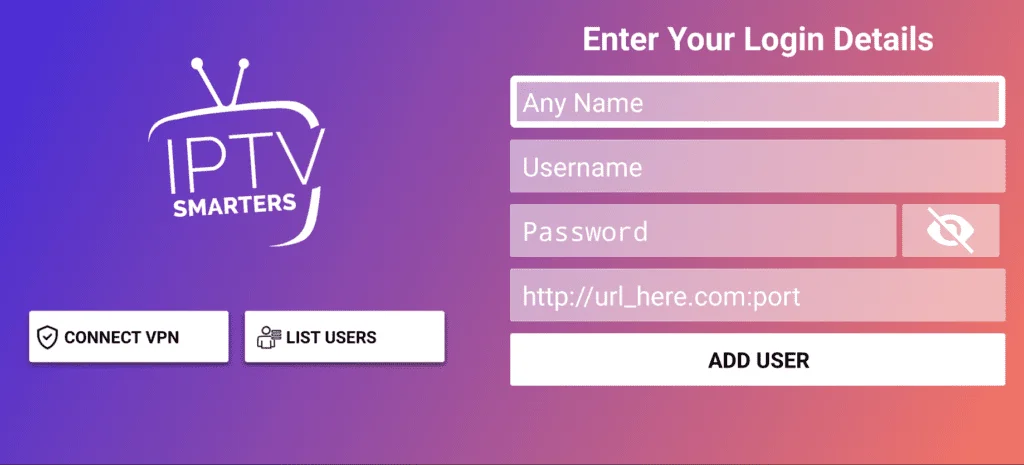
Enter your login details to log in to Get Xtreme IPTV via IPTV Smarters.
Step 3: Once logged in, you will be redirected to the user list. Click on the profile you just created.
Step 4: Congratulations, you have now successfully set up and configured the IPTV Smarters Pro app.
SMART TV (Samsung/LG/Android)
FIRESTICK : Wie installiere ich SMARTERS IPTV
1. First, we’ll install the Downloader app.
This app will help you sideload IPTV Smarters onto your Fire Stick (since browser downloads aren’t allowed).
You can also read our detailed guide on how to sideload apps onto your Fire Stick using Downloader.
2. Click the “Find > Search” option on your Fire Stick home screen.
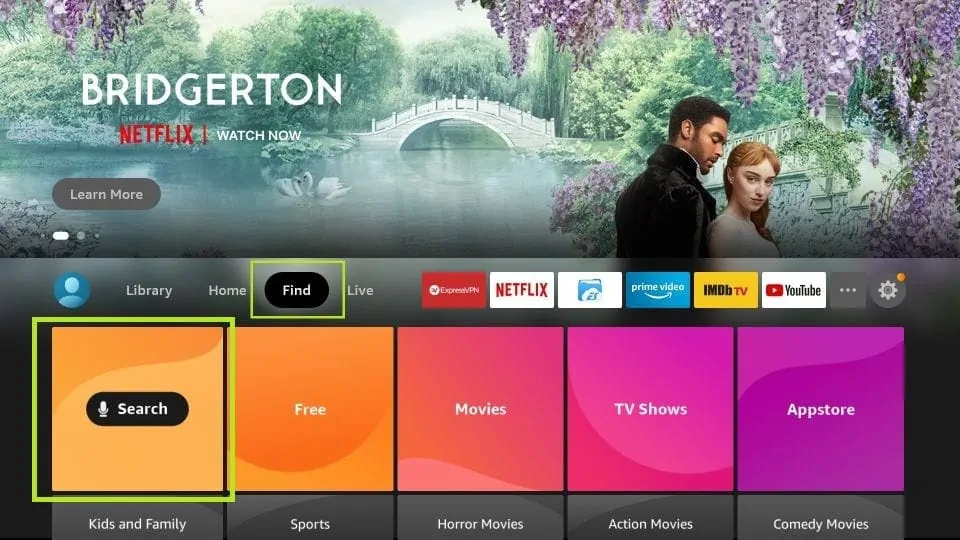
Use the search function on your Amazon Fire Stick to find and install IPTV Smarters.
3. Enter the app’s name (it’s called Downloader).
Select the “Downloader” option when it appears in the search results.
Select the Downloader icon on the following screen and download and install the app.
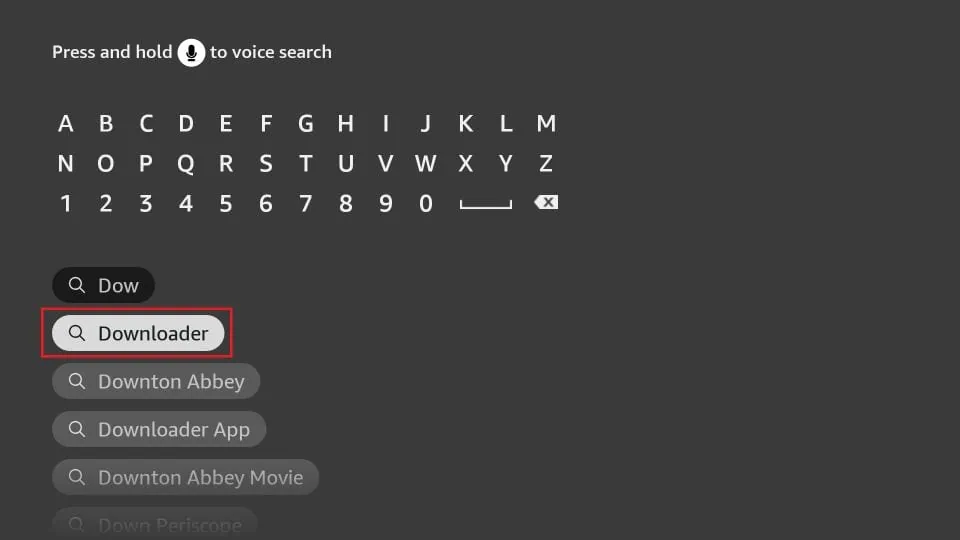
Use the search function on your Fire Stick to find the downloader app for installing IPTV Smarters.
4. After installing the downloader app, return to your Fire Stick home screen.
In the menu bar, click on “Settings”.
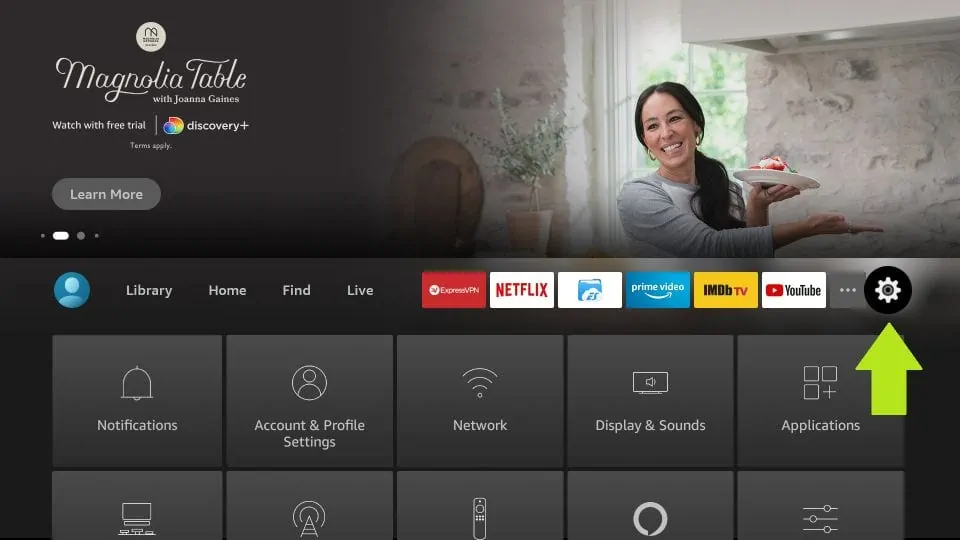
Open the Fire Stick settings menu to configure system options and install IPTV Smarters.
5. In the settings, select the “My Fire TV” option.
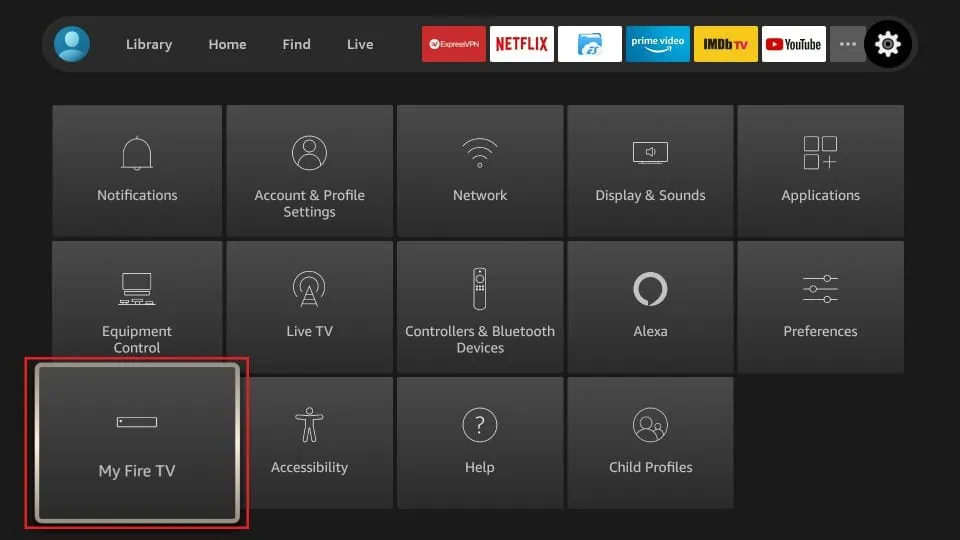
Navigate to ‘My Fire TV’ in the Fire Stick settings menu to access system options.
6. If the following list of options appears on the next screen, click “Developer Options”.
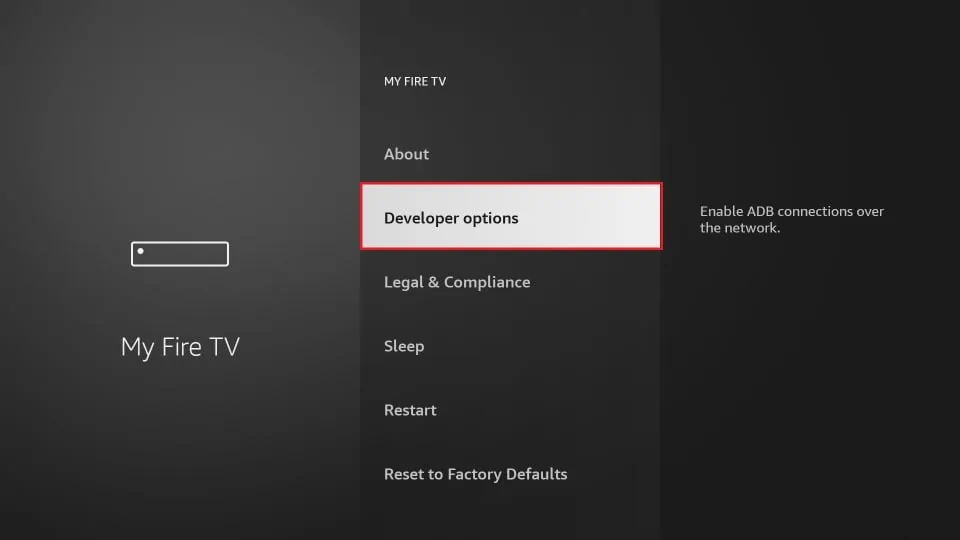
Enable Developer Options on your Fire Stick to allow the installation of third-party apps like IPTV Smarters.
7. Click on “Install from Unknown Sources.”
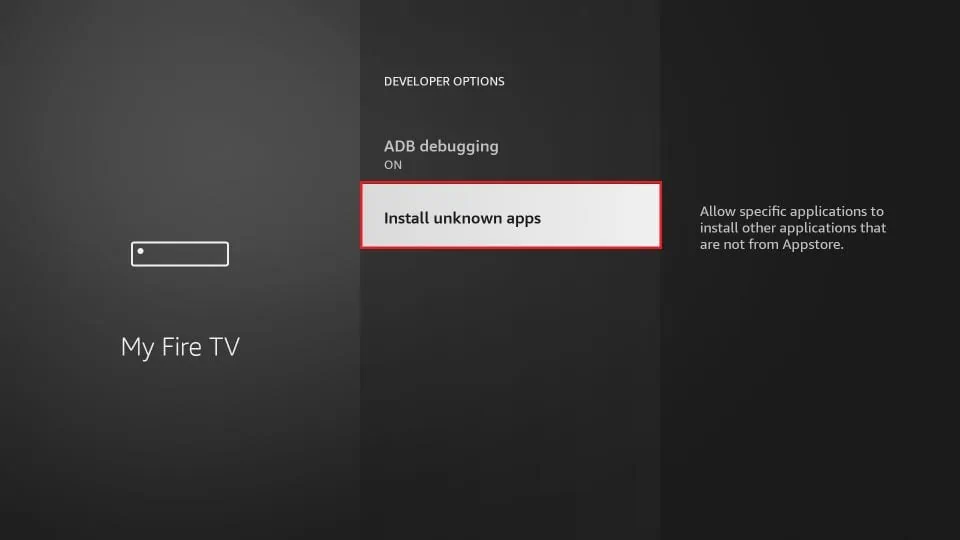
To install IPTV Smarters, enable the ‘Install Unknown Apps’ setting on your Fire Stick.
8. Click on “Downloader” to change the status to “ON”.
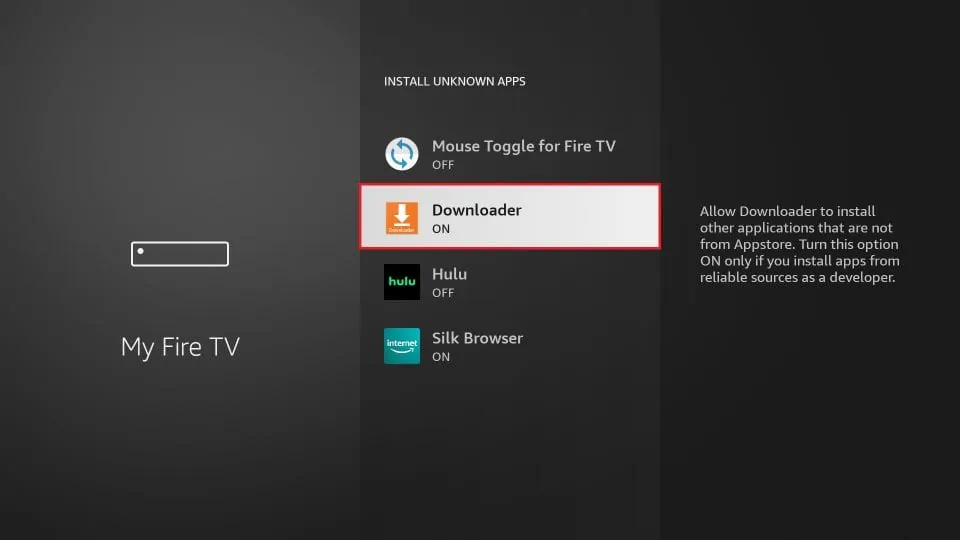
Activate the Downloader app on your Fire Stick to install IPTV Smarters.
This configures your Fire Stick settings to allow the installation of IPTV Smarters and other third-party apps. Follow the steps below:
9. You can now open the Downloader app.
The first time you run this app, a series of prompts will appear. Ignore these until you see the following screen.
On this screen, click the URL text field on the right (make sure the “Home” option is selected in the left-hand menu) where it says ‘http://’.
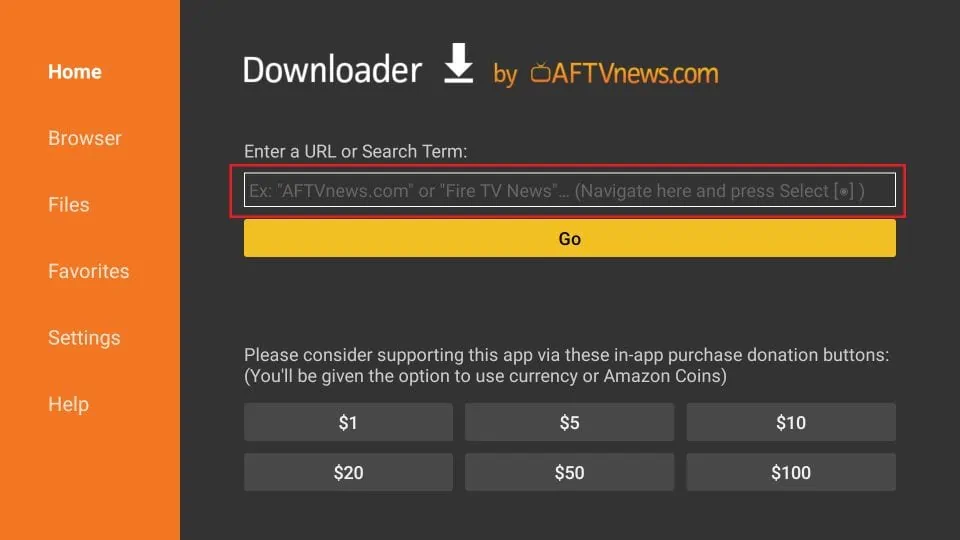
Use the Downloader app on your Fire Stick to enter a URL and download IPTV Smarters.
10. Go ahead and enter the following path in this window:
https://www.iptvsmarters.com/smarters.apkClick on “GO”.
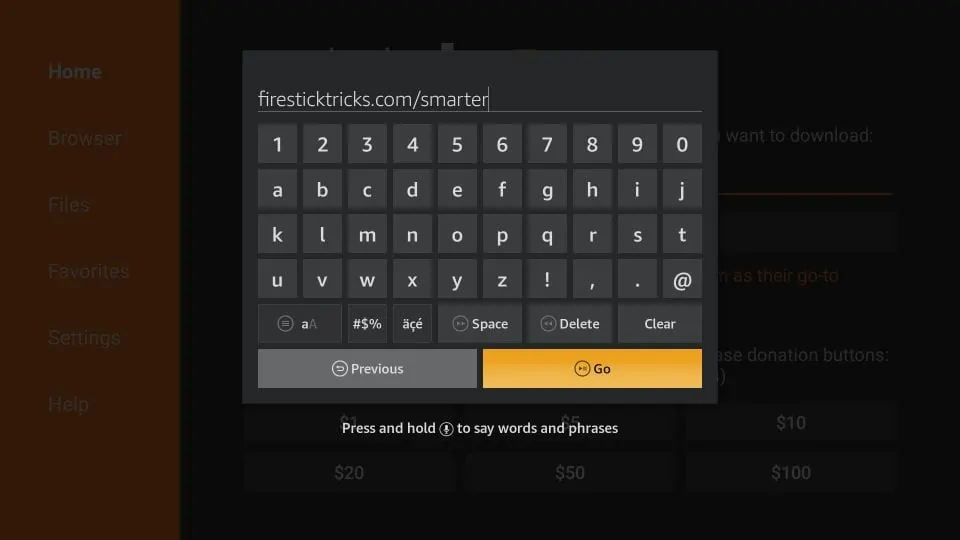
Enter a URL into the Downloader app on your Fire Stick to download IPTV Smarters.
11. Allow a minute or two for IPTV Smarters to download to your Fire Stick device.
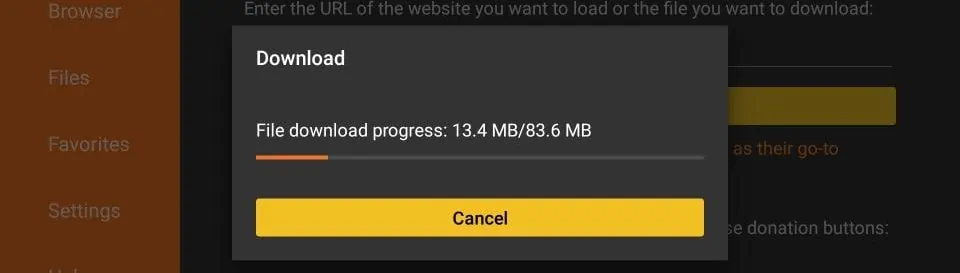
The Downloader app will download IPTV Smarters to your Fire Stick. Please wait until the process is complete.
12. Once the download is complete, the Downloader app will run the APK file, and the installation will begin.
Click “Install.”
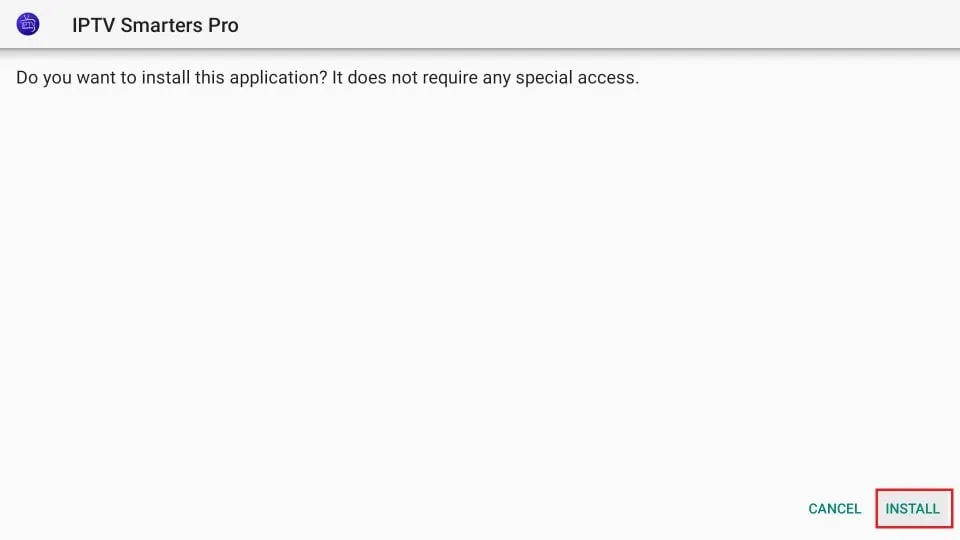
Click ‘Install’ to complete the installation of IPTV Smarters Pro on your Fire Stick.
13. Wait until the installation is complete.
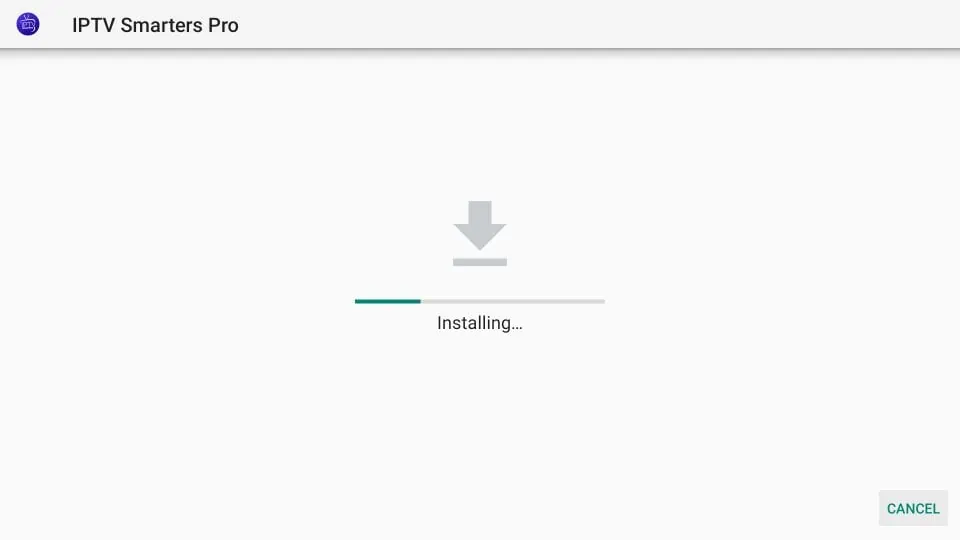
The installation of IPTV Smarters Pro on your Fire Stick is in progress. Please wait.
14. The installation is complete with the notification “App Installed.”
You can now click OPEN and start using IPTV Smarters.
I recommend clicking “DONE” first so you can delete the APK file and free up some storage space on your Fire Stick.
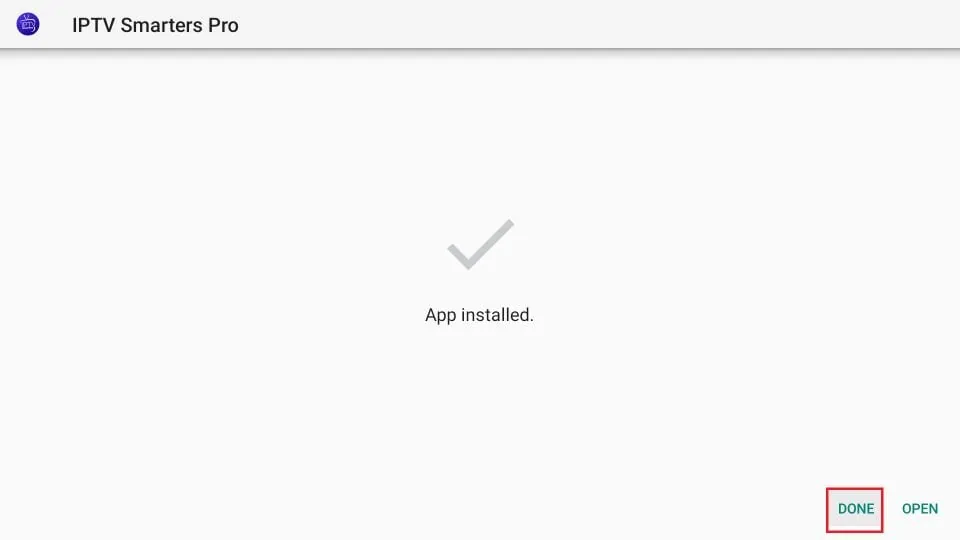
IPTV Smarters Pro has been successfully installed on your Fire Stick. Click ‘Open’ to launch the app.
15. After clicking “DONE” at the top, you will be back in the downloader interface.
Click “Delete”.
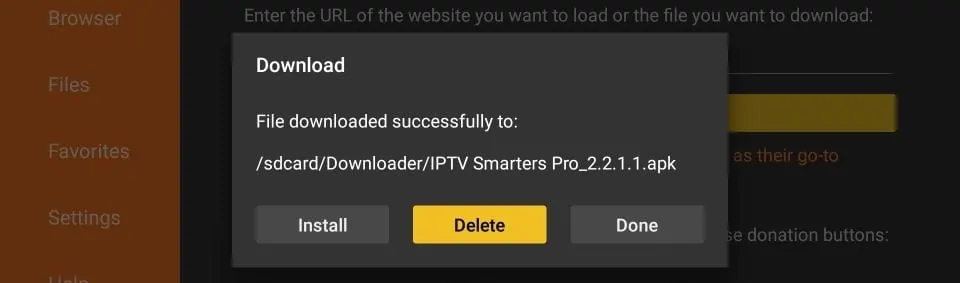
The IPTV Smarters Pro APK has been successfully downloaded. Click ‘Install’ to continue the installation on your Fire Stick.
16. Click ‘Delete’ again.
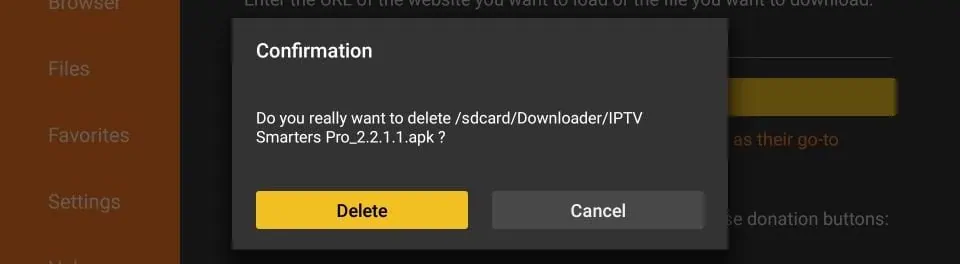
Confirm whether you want to delete the IPTV Smarters Pro APK file from your Fire Stick storage.
Great! You now have the IPTV Smarters app on your Fire Stick.
APPLE ( iPhone/iPad/Apple TV)
ANDROID ( Smartphone,Android Box)
PC/MAC (VLC Software)
STB Emulator
MAG250/254/256
ROKU Device
How to Install IPTV on Roku with a Simple Trick
This tutorial provides step-by-step instructions for installing IPTV on Roku. Using a Roku device, we need to sideload IPTV onto the Roku device. The following instructions require using a computer to download the IPTV app file and add it to your Roku streaming device.
If you are using a different IPTV player like TiviMate, you can also watch IPTV on Roku by casting it to your Roku device. IPTV Smarters is one of the best IPTV players, compatible with hundreds of IPTV services that use a server URL.
Anyway, let’s get to how to install IPTV on Roku. I’ve divided the instructions into four parts to make them easier to understand:
Part 1: Enabling Developer Options on Roku
Part 2: Adding the IPTV Smarters Channel
Part 3: Downloading the IPTV Smarters Package to Your Computer
Part 4: Installing IPTV Smarters on Roku
Don’t worry, the process is easier than it sounds. Let’s get started.
Enabling Developer Options on Roku
1. Power on your Roku by switching to the HDMI input on your TV.
2. Take your Roku remote and press the following buttons in this order: Home button x3, Up arrow x2, Right arrow x1, Left arrow x1, Right arrow x1, Left arrow x1, Right arrow x1.
3. If everything was done correctly, the Developer Options menu will appear on your Roku TV screen.
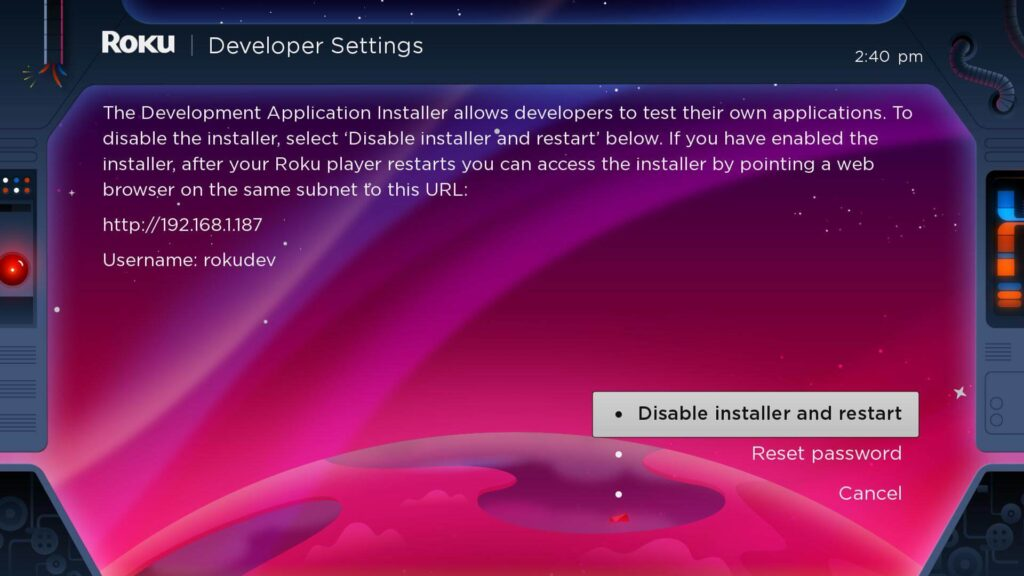
Enable Roku Developer Mode to install applications via a web browser.
4. Write down the IP address displayed on the screen.
.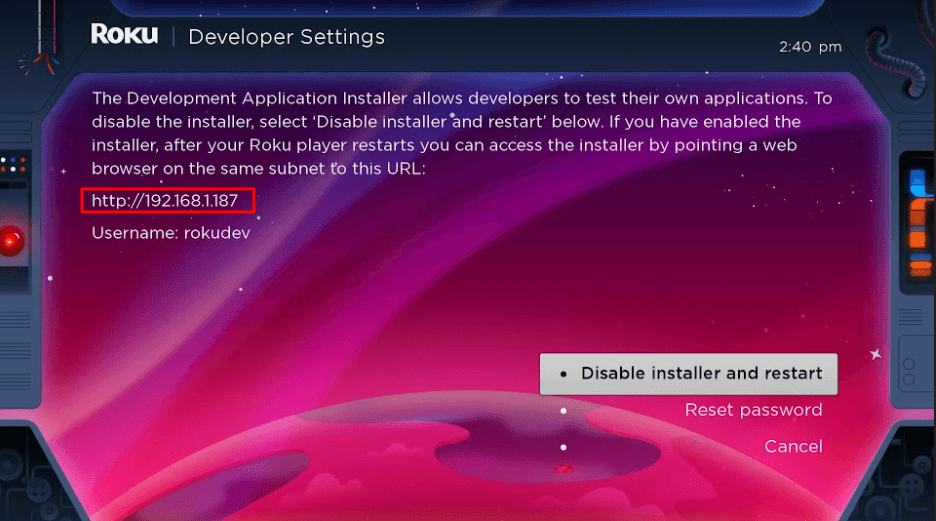
Use the provided URL in a web browser to access the Roku Developer Installer.
5. Select ‘Activate and restart the installer’ (mine says ‘Deactivate’ because I already did that).
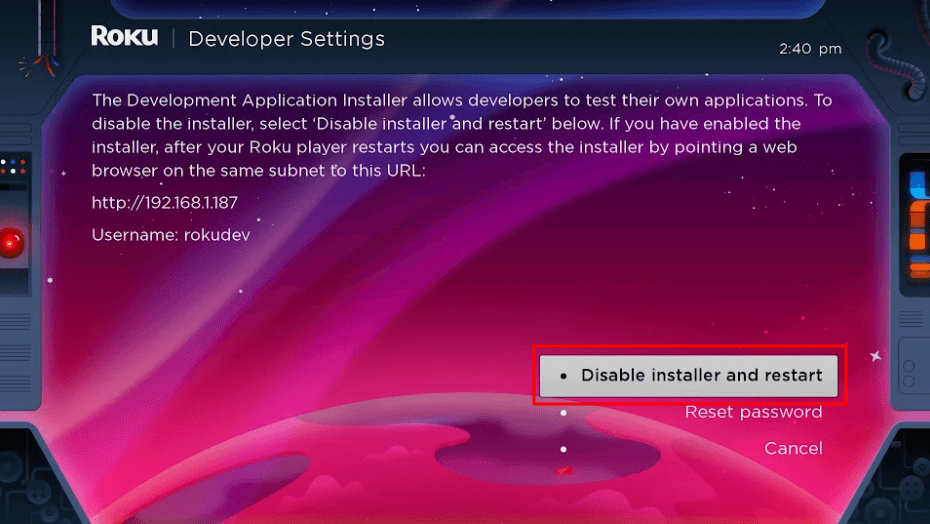
Select ‘Disable Installer and Restart’ to exit Roku Developer Mode and restart the device.
6. Scroll through the Developer Tools License Agreement and select ‘I Agree’.
7. Create a web server password using the keyboard that appears. You will need your web server password for a later step.
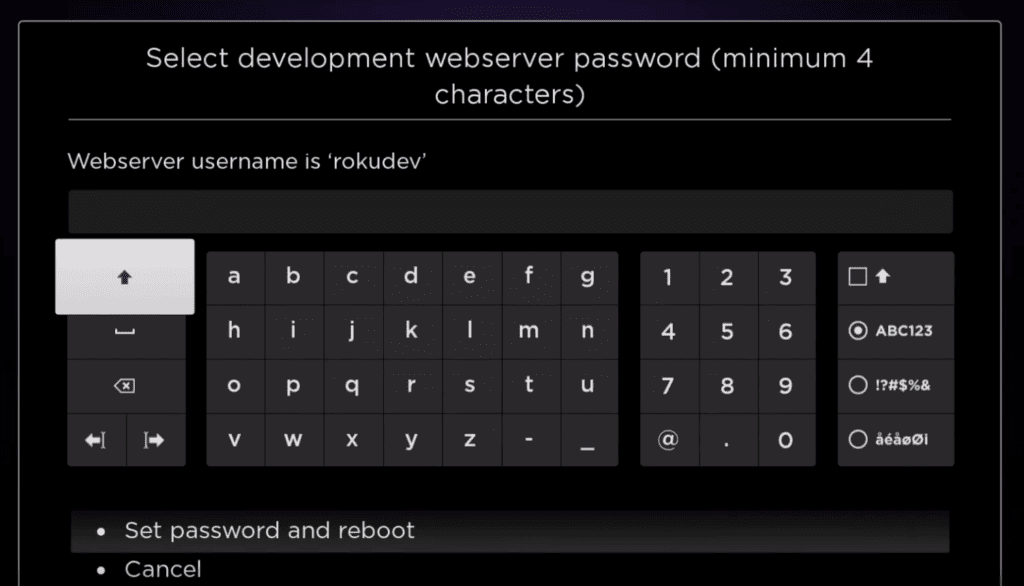
Enter a secure password to enable developer mode on Roku and access the web server.
8. Select Set password and restart.
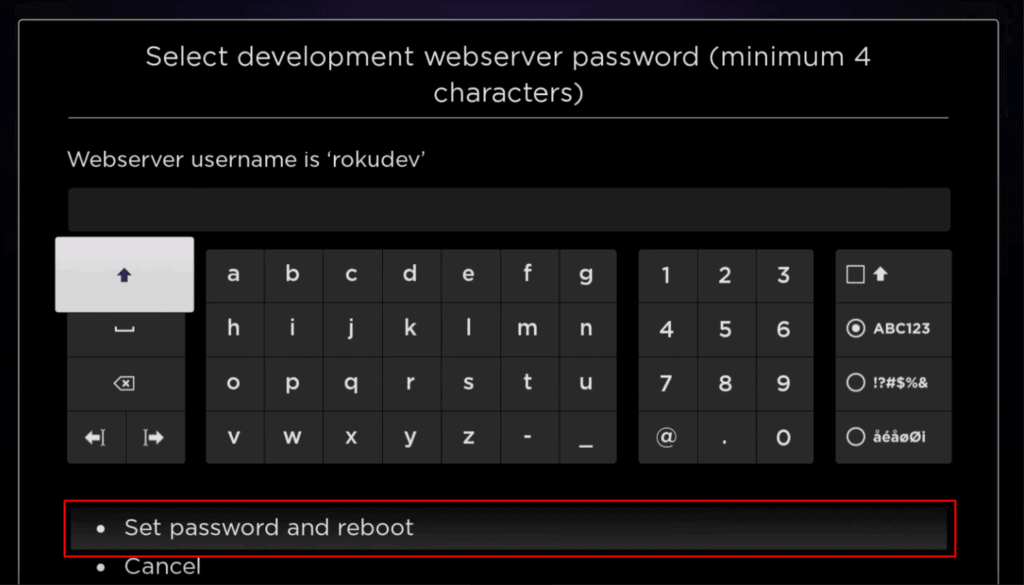
Enter a password and select ‘Set password and restart’ to enable developer mode on Roku.. Part 2: Adding an IPTV Smarters Channel
1. Go to your computer and open my.roku.com in any browser.
2. Enter your Roku account username and password and click ‘Submit’.
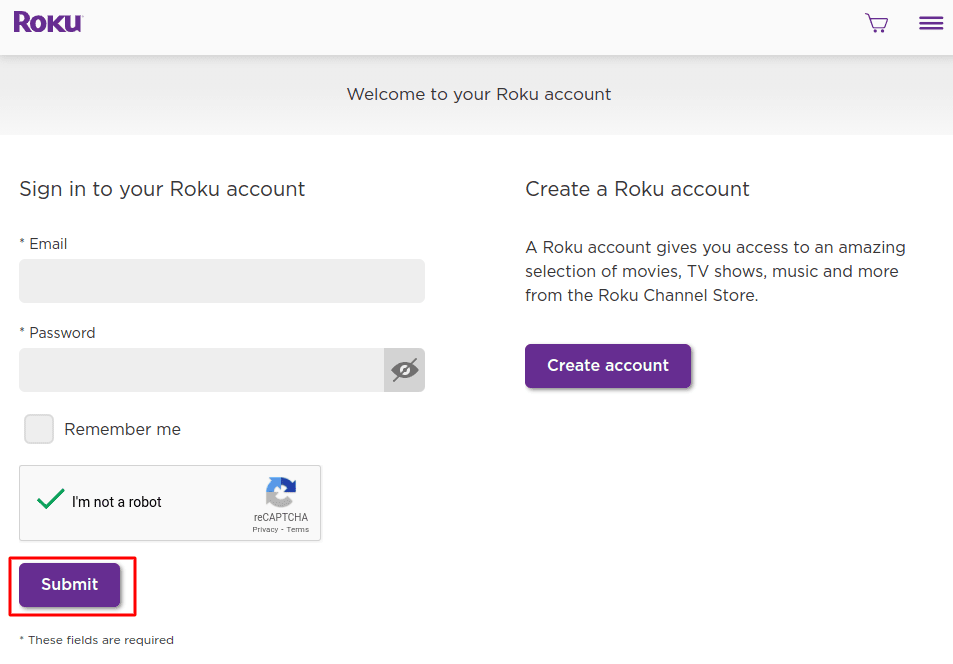
Enter your Roku account details or create a new account to access streaming services.
3. After logging in, select ‘Add channel with a code’ under ‘Manage account’.
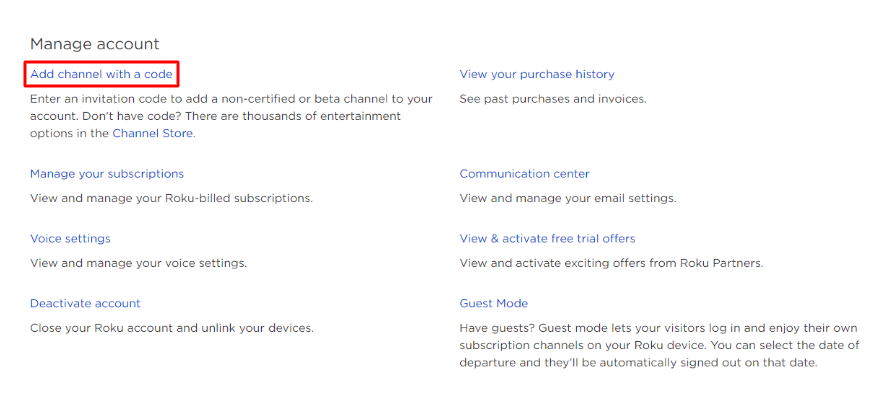
Enter a code to add an uncertified or beta channel to your Roku account.
4. Type iptvsmarters into the field. Make sure you enter it exactly as shown.
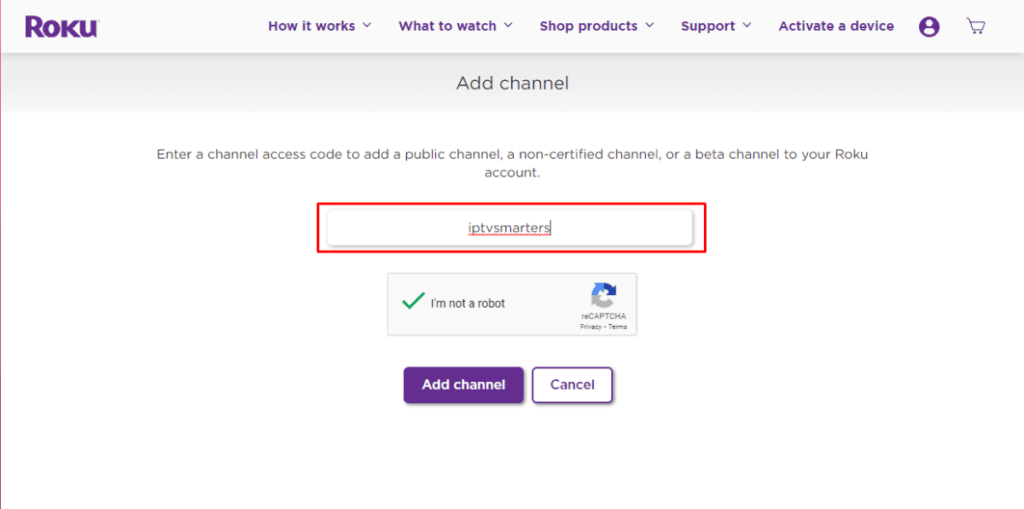
Enter the IPTV Smarters channel code to add it to your Roku account.
5. Select ‘Add Channel’ to add it to your Roku.

Enter the IPTV Smarters channel code and click ‘Add Channel’ to confirm the installation on your Roku.
6. Click OK on the warning message that appears.
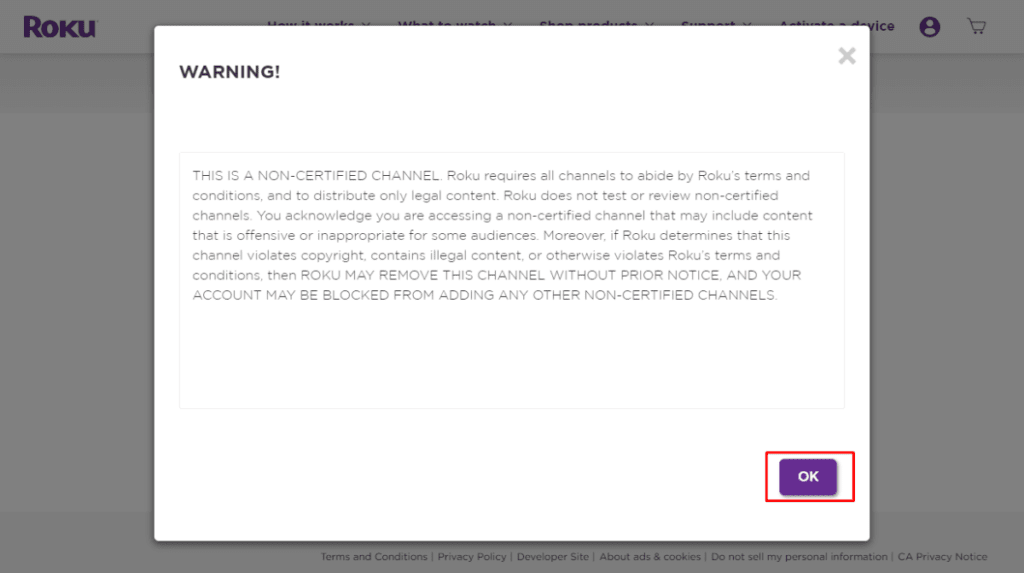
This warning appears when adding an uncertified channel to Roku. Click ‘OK’ to continue.
7. Select Yes, Add Channel in the following pop-up.
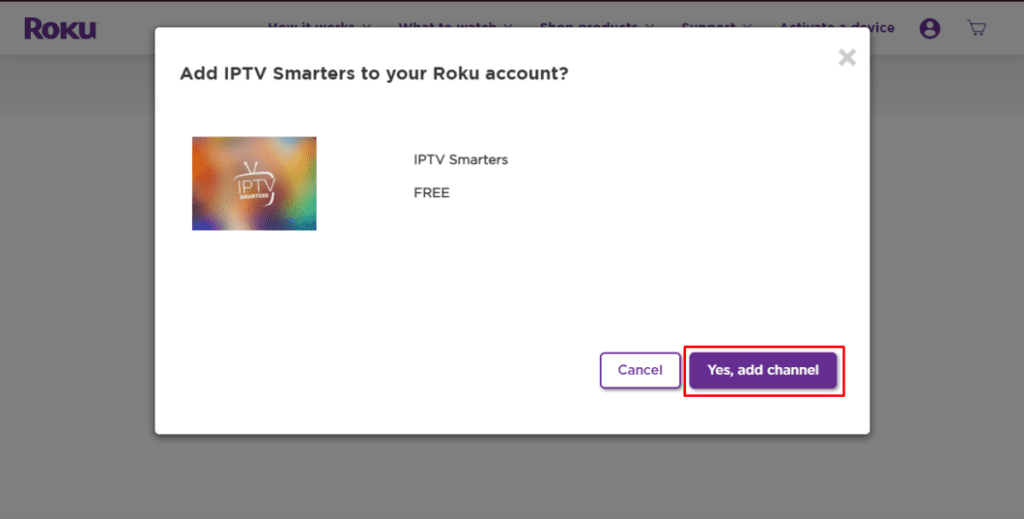
Click ‘Yes, Add Channel’ to add IPTV Smarters to your Roku account for free.
Part 3: Download the IPTV Smarters package to your computer.
Now it’s time to download the IPTV Smarters file to your computer.
1. On your computer, go to this link, and the download should start automatically: https://www.whmcssmarters.com/clients/dl.php?type=d&id=108
Note: FireStickTricks.com does not host or distribute this APK. The link leads to the website where it is hosted.
2. Save the IPTV Smarters package to an easily accessible location on your computer (you’ll need to navigate to this location shortly). I’ll save it to my desktop.
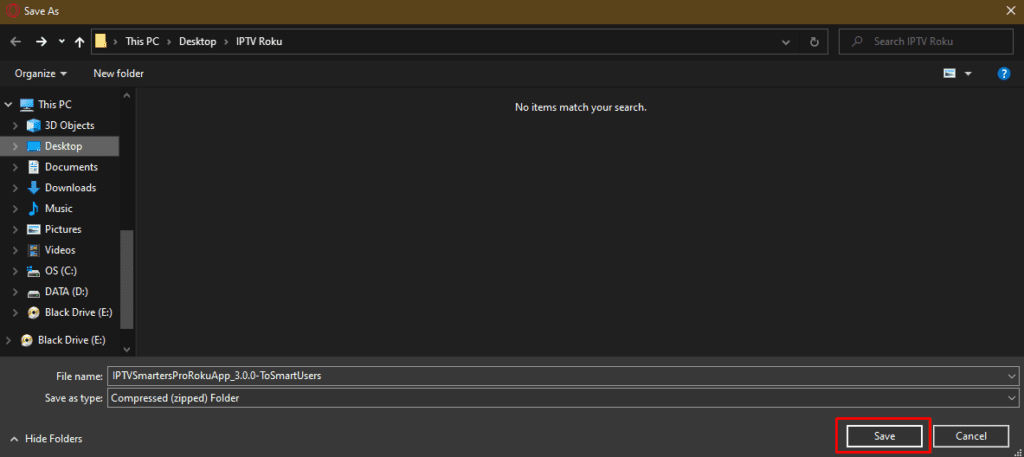
Save the IPTV Smarters Pro Roku app as a compressed folder before installation.
Part 4: Installing IPTV Smarters on Roku
1. Open any web browser on your computer. In the address bar, enter the IP address of your Roku device, which you noted earlier.
2. A login window will appear. Enter ‘rokudev’ as the username. Enter the web server password you created earlier as the password. Finally, click ‘Log In’.
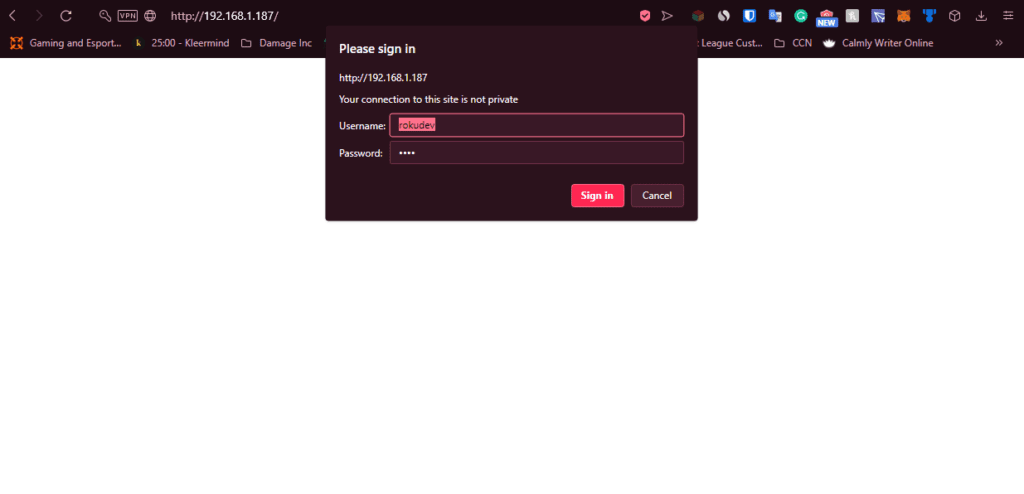
Enter ‘rokudev’ as the username and the assigned password to enter Roku Developer Mode.
3. Click ‘Upload’ on the next page.
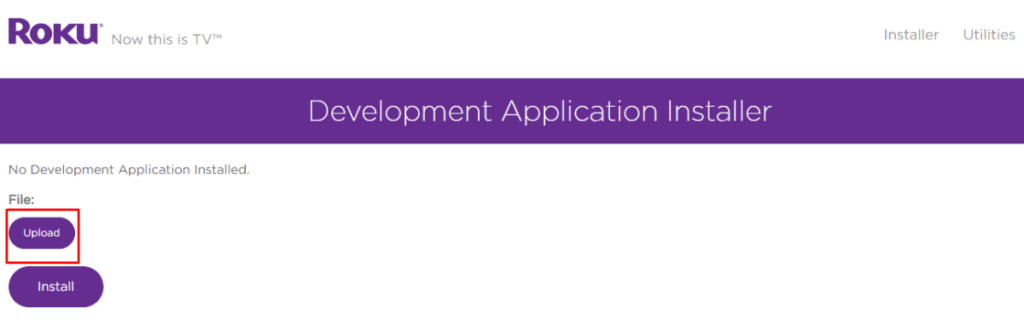
Click ‘Upload’ to select the file before installing a Roku developer application.
4. Go to the location where you downloaded the IPTV Smarters package (mine was my desktop). Select the downloaded folder and click ‘Open’.
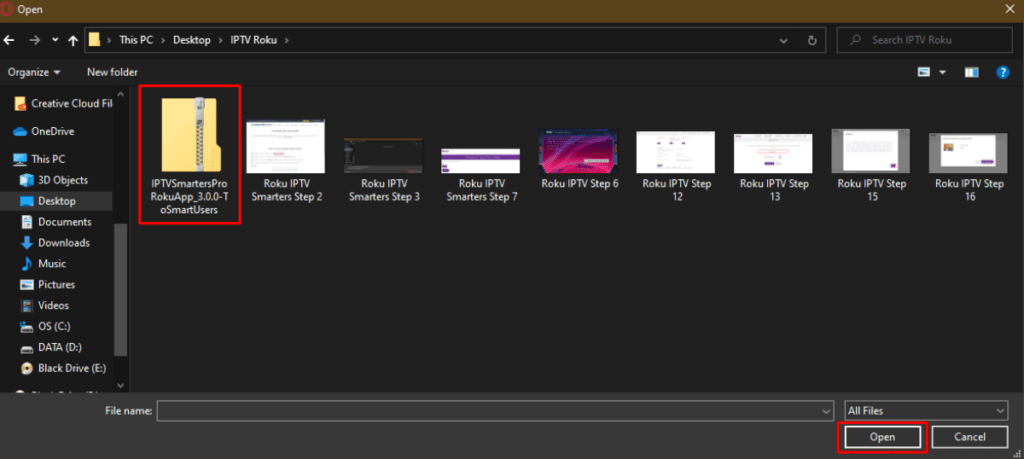
Select the IPTV Smarters Pro ZIP file and click ‘Open’ to proceed with the installation on your Roku.
5. Click ‘Install’ once the file has been uploaded.

Click ‘Install’ to complete the installation of IPTV Smarters Pro on Roku.
6. If you see this screen, you’ve done it correctly!
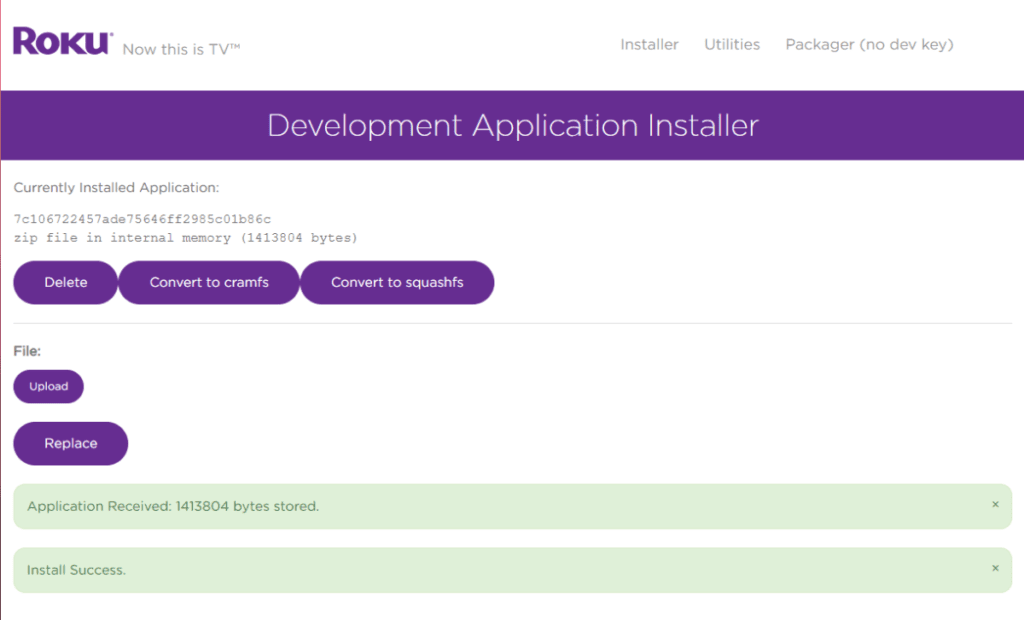
The IPTV Smarters app has been successfully installed on your Roku device using developer mode.
7. Return to your Roku device, and IPTV Smarters will appear on your TV screen.
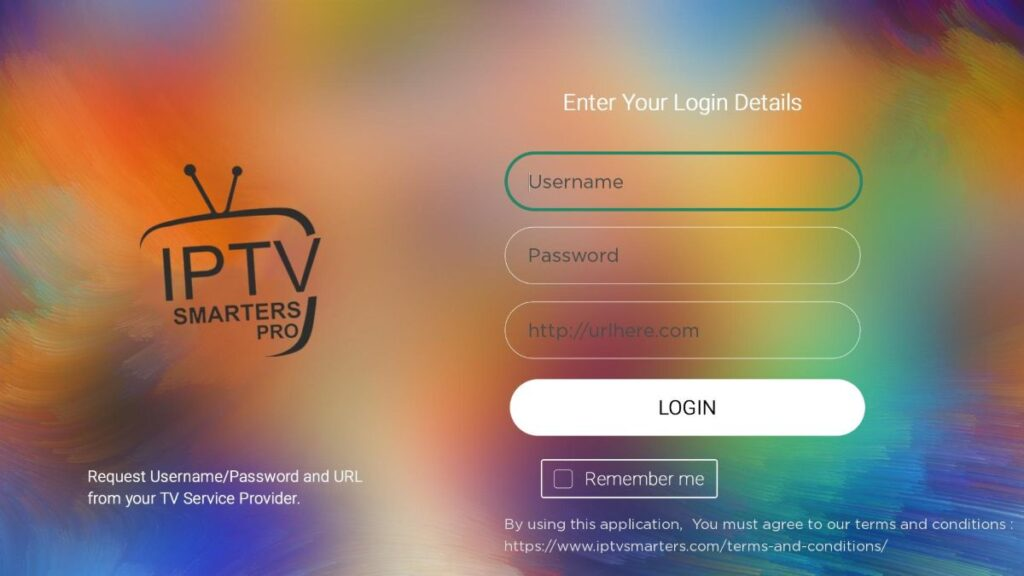
Enter your username, password, and server URL to log in to IPTV Smarters Pro.
8. Simply log in with your IPTV Smarters credentials and you’re all set!
Steps to watch IPTV on Roku via screen mirroring
To stream IPTV to your Roku-connected TV via screen mirroring, you need to install IPTV Smarters or Smart IPTV (another IPTV player) on your smartphone. Once you have one of these two players, you can use the cast or mirroring option on your device.
With the cast/mirror option, you can access the content on your Roku TV from any device on the same Wi-Fi network that uses the IPTV player app.
SONY TV
FIRESTICK : Wie installiere ich TiviMate
Please follow the three steps below to install TiviMate on your Fire Stick.
Part 1: Download the “Downloader” on your Fire Stick
1. Open the Fire Stick home screen.
2. Go to the “Find” menu.
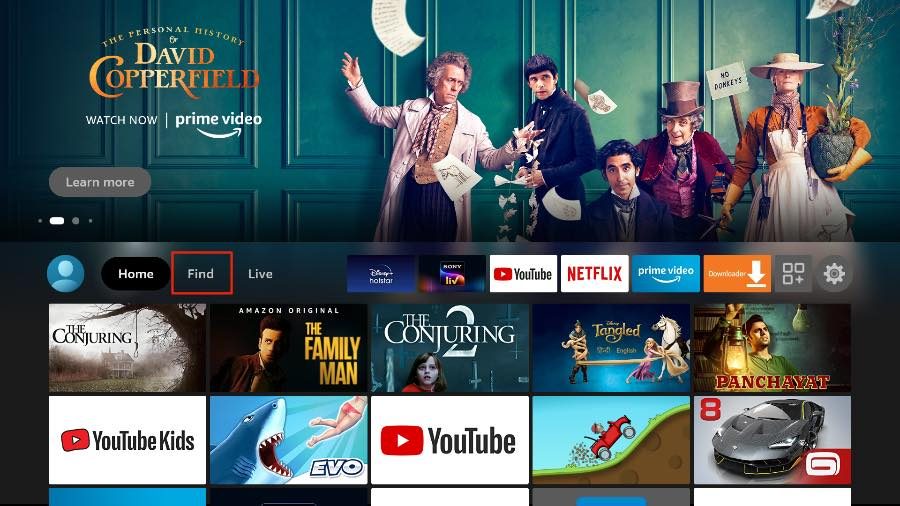
Fire TV home screen with various streaming apps, including IPTV setup options.
3. Select “Search” at the top.
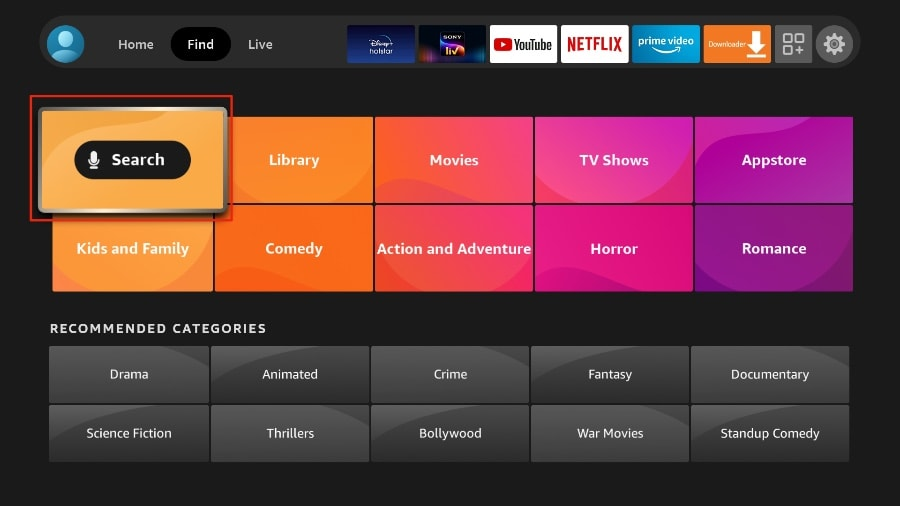
Use the Fire TV search function to find apps, including IPTV services.
4. A virtual keyboard will open on your Fire Stick.
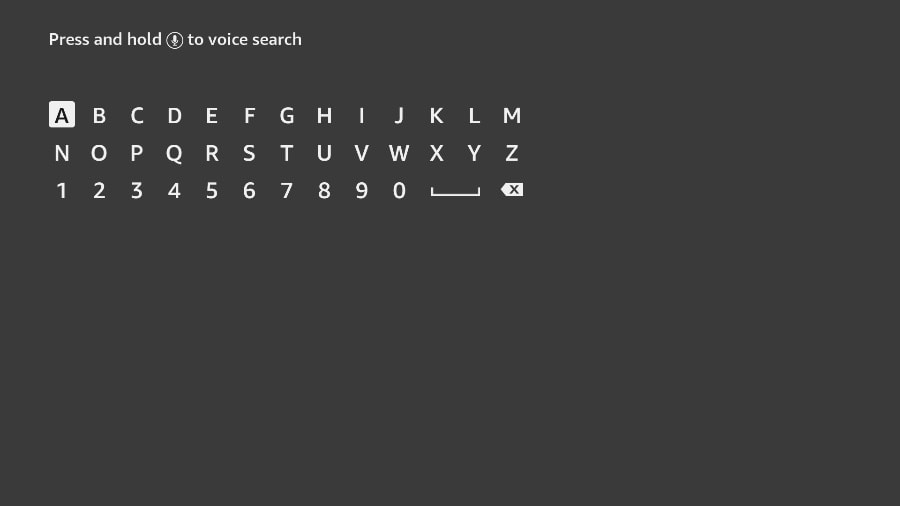
Use the Fire TV on-screen keyboard to search for apps like IPTV Smarters.
5. Start typing “Downloader.” Select “Downloader” when it appears among the suggestions below the keyboard.
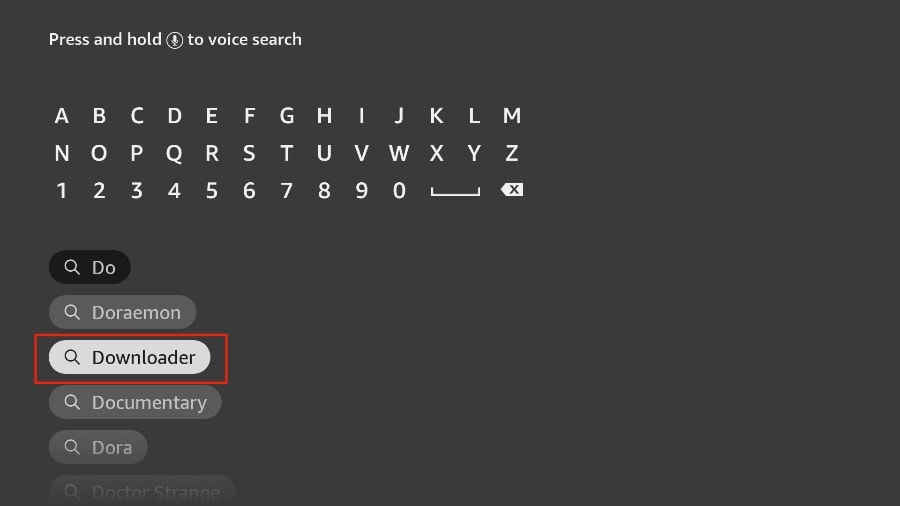
To install IPTV services, locate the ‘Downloader’ app on your Fire TV.
6. Select the “Downloader” app, which you can identify by its orange background. Then, on the following screen, select the “Download” or “Download” button.
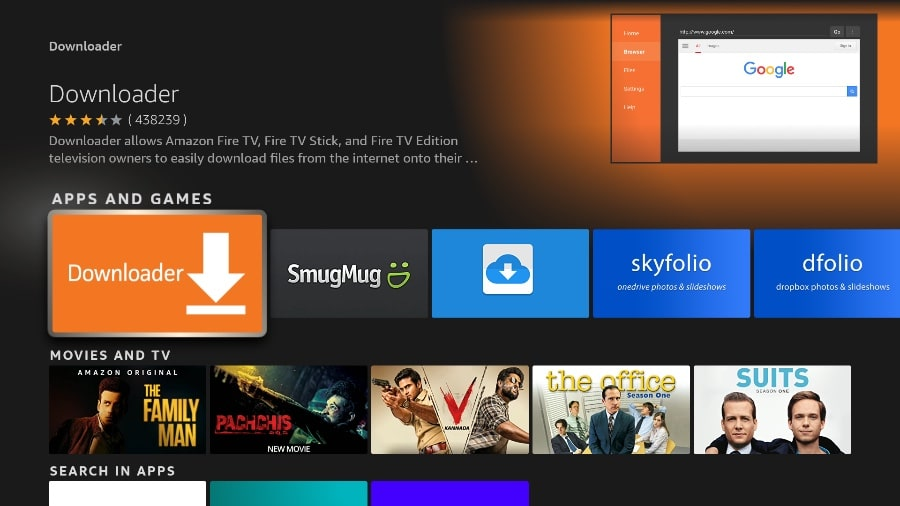
Install the Downloader app from the Fire TV App Store to sideload IPTV services.
Installing the Downloader app on your Fire Stick will take a moment. Before opening the Downloader app to install the TiviMate APK, you need to make changes in the Fire Stick settings menu. Otherwise, you will receive error messages during the installation.
Part 2: Change the Fire Stick Settings
1. Press the Home button on your Fire Stick remote.
2. Go to the Settings gear icon on the far right.
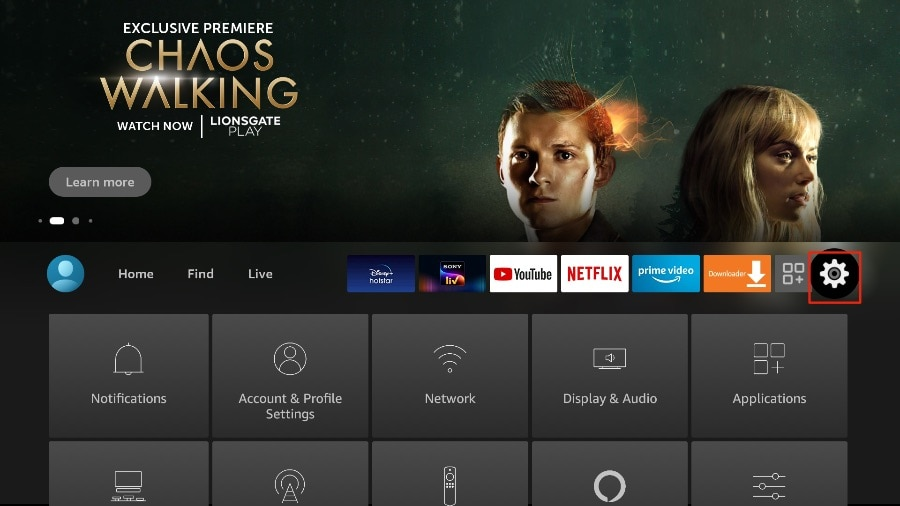
Open Fire TV settings to adjust permissions for installing TiviMate on your Fire Stick.
3. Scroll down and select “My Fire TV”.
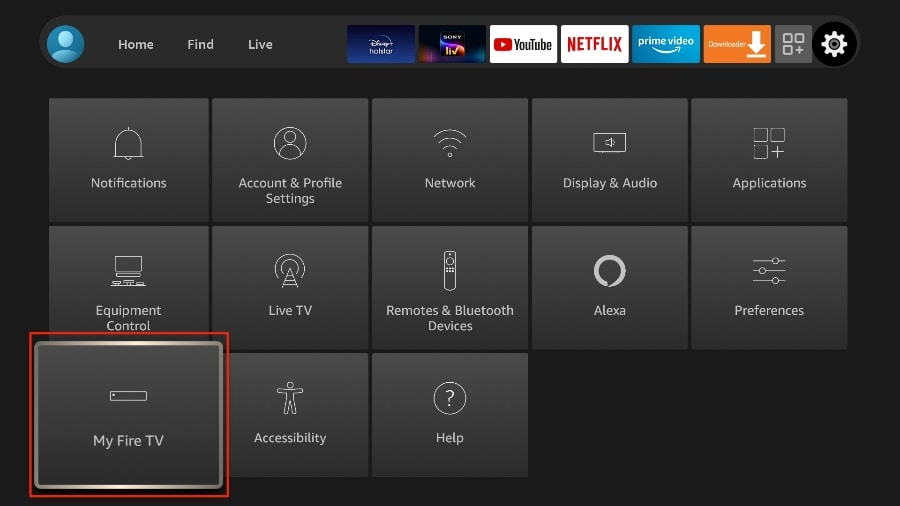
Navigate to ‘My Fire TV’ in the Fire Stick settings to enable the installation of IPTV apps like TiviMate.
4. Select “Developer Options”.
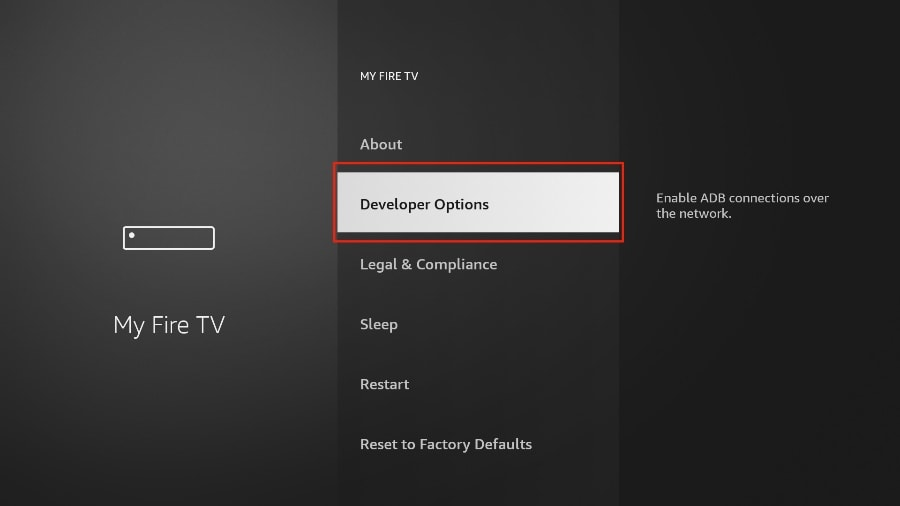
Enable ‘Developer Options’ on Fire TV to allow the installation of third-party apps like TiviMate.
5. Look for “Apps from Unknown Sources.” It’s disabled by default. Select it to turn it on.
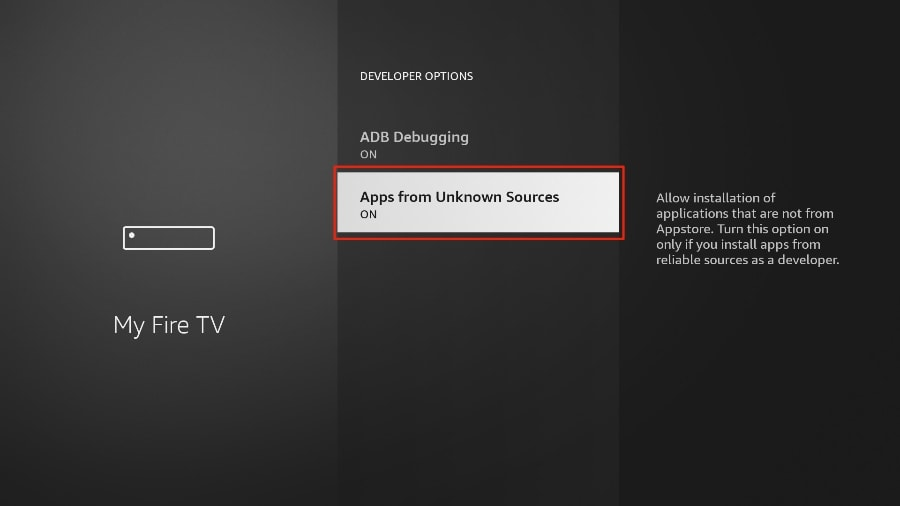
Enable ‘Apps from Unknown Sources’ in your Fire TV settings to install IPTV apps like TiviMate.
Now you can easily sideload any app installation file (APK) onto your Fire Stick. Follow the steps below to install the TiviMate APK on your Fire Stick using the Downloader app.
Part 3: Using Downloader to Install TiviMate on Fire Stick
1. On your Fire Stick home screen, go to the “Apps” menu.
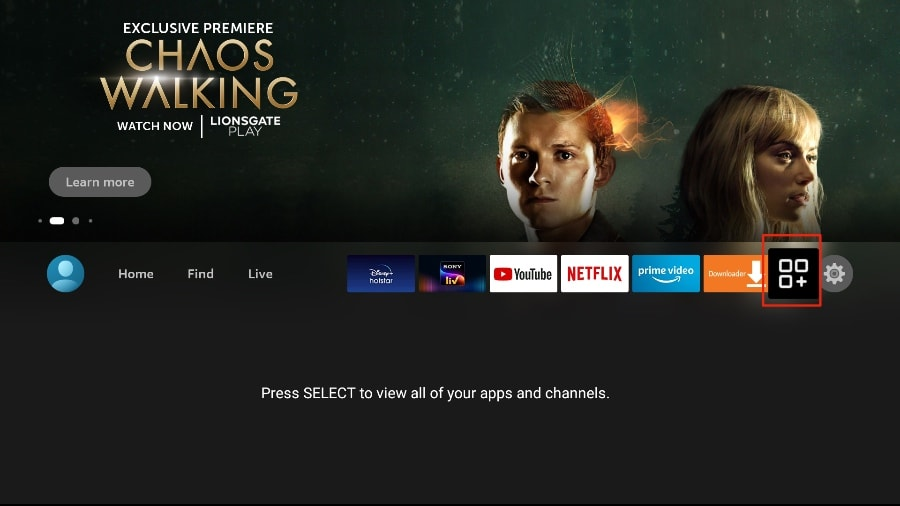
Open the Fire TV menu and select ‘Apps & Channels’ to find and launch Downloader after installation.
2. Open the Downloader app and select the “Enter URL” field on the home screen.
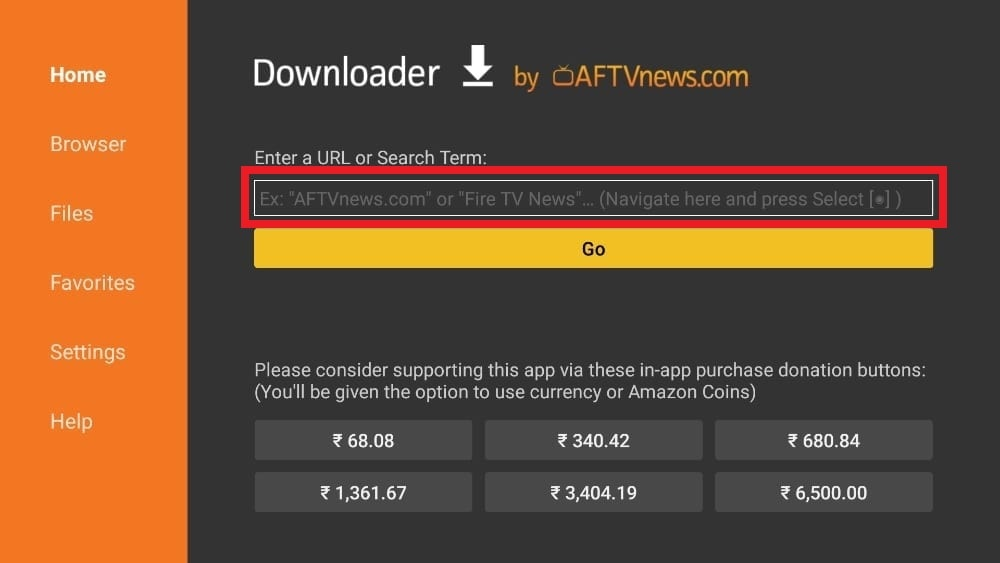
Use the Downloader app on Fire TV to enter a URL and download TiviMate for GetXtremeIPTV streaming.
3. A virtual keyboard will open. Type “https://www.firesticktricks.com/tivi” and tap “Go” at the bottom.
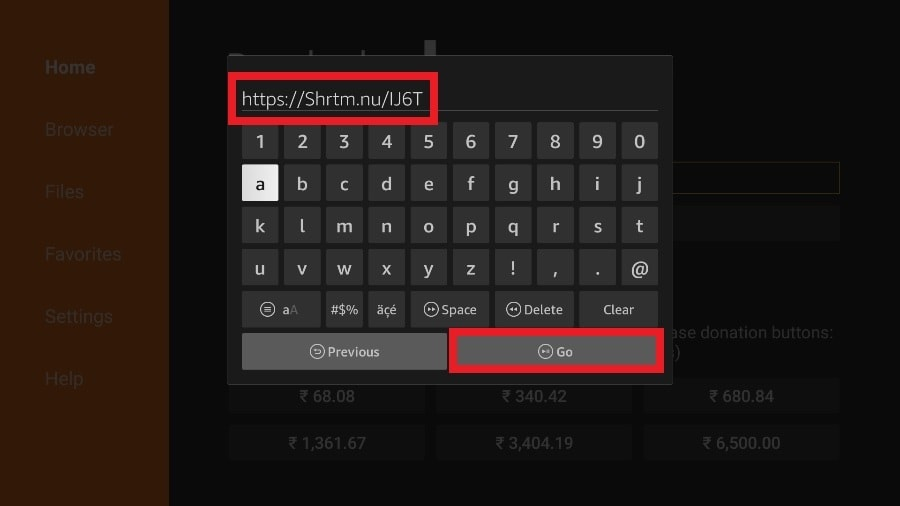
To install TiviMate on your Fire Stick, enter the provided URL into the Downloader app and press ‘Go’ to start the download.
4. Downloader will install the latest TiviMate APK on your Fire Stick. It is approximately 11 MB in size.
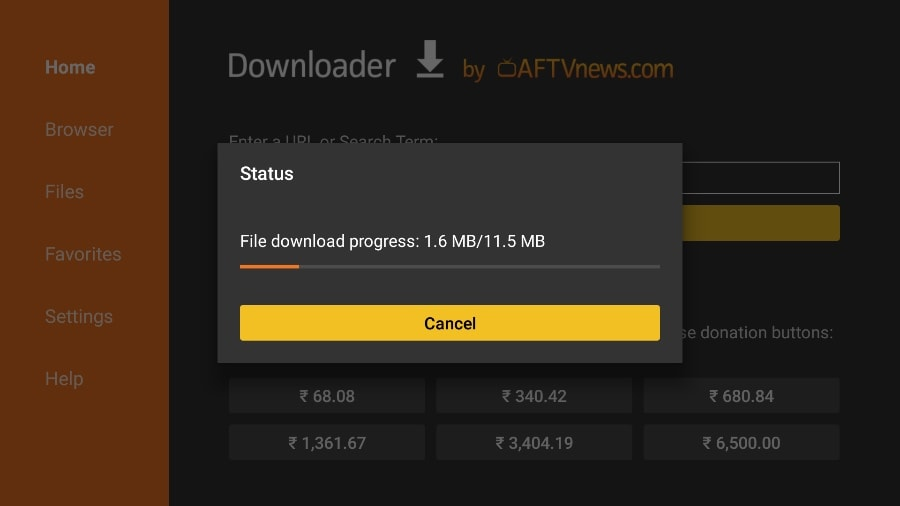
The Downloader app will download the latest TiviMate APK to your Firestick. This step is necessary to set up IPTV services like getxtremeiptv.
5. Click “Install” when prompted.
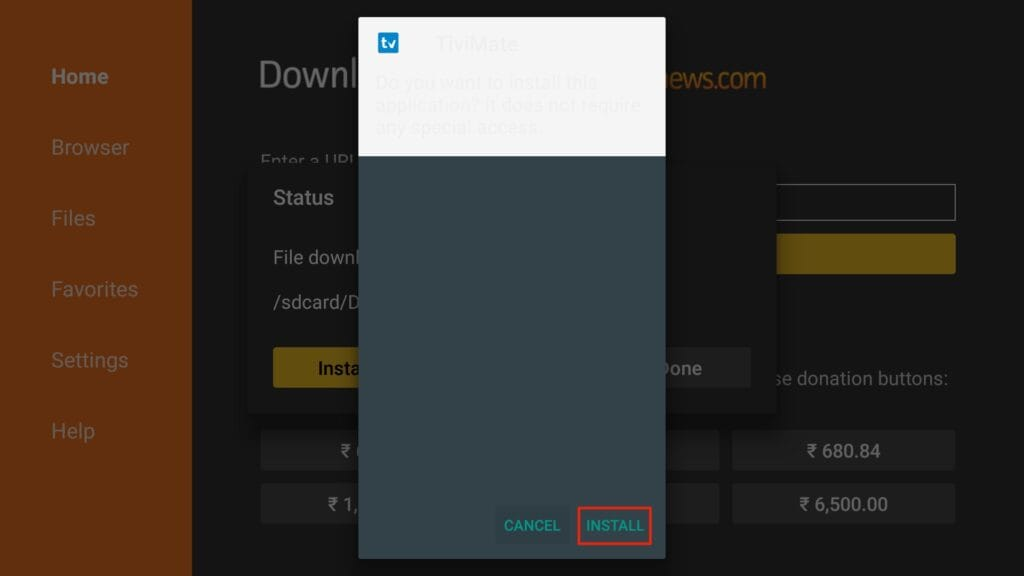
The installation window for the TiviMate APK will appear on your Firestick. Click “Install” to proceed with setting up IPTV services like getxtremeiptv.
6. After installation, you can delete the APK file from your device.
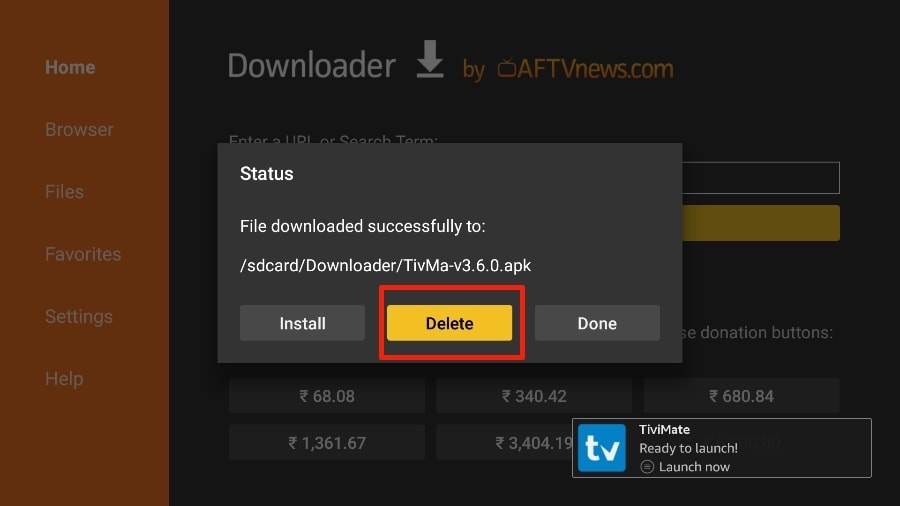
Once TiviMate is installed, users can select “Delete” to remove the APK file from their Fire Stick. This helps optimize storage space for IPTV services like getxtremeiptv.
I suggest our readers delete the APK file on their Fire Stick, as it no longer serves any purpose. We already used it to install TiviMate. In general, I recommend keeping your Fire Stick free of unnecessary files and media. If storage space becomes limited, it can lead to slow device performance.
That’s it! You have successfully installed the TiviMate APK on your Fire Stick. Now you can enjoy hundreds of live channels, movies, and TV series on your Fire Stick. Before we discuss the app, let’s make a quick customization for your convenience.
TiviMate IPTV Player is an addictive app that you’ll likely use frequently. I recommend placing the app directly on your Fire Stick’s home screen for easy access. Follow these steps to do so.
1. Press and hold the Home button on your Fire Stick remote.
2. On the next screen, select Apps.
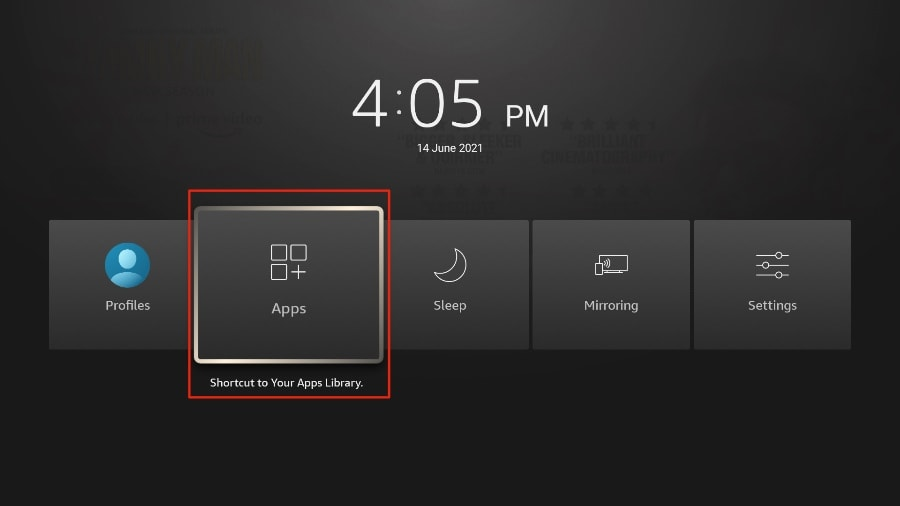
3. Scrollen Sie zu “TiviMate IPTV Player”, wählen Sie es jedoch nicht aus. Drücken Sie stattdessen die “Optionen-Taste” auf Ihrer FireStick-Fernbedienung.
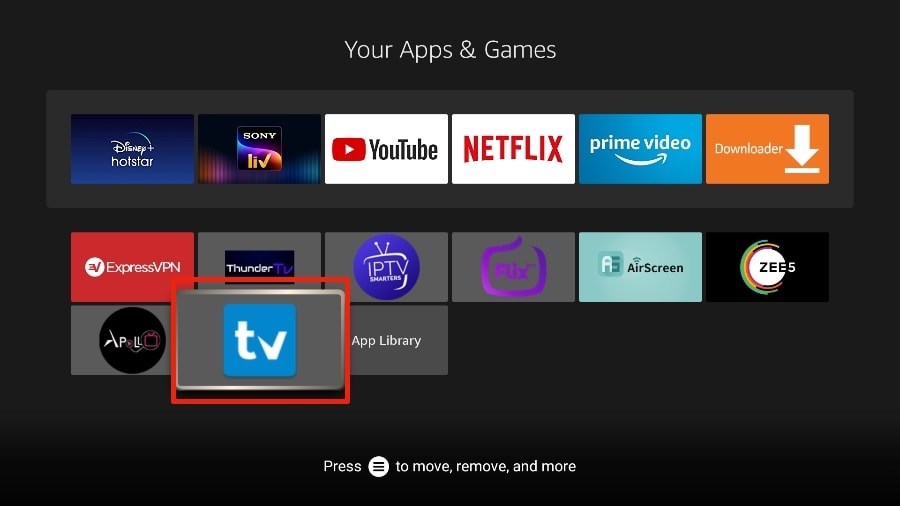
To make TiviMate easily accessible on your Fire Stick, find it in the Apps menu and use the Options button to move it to your home screen. Perfect for IPTV services like getxtremeiptv.
4. On the right side, you’ll find the Move option. Select it.
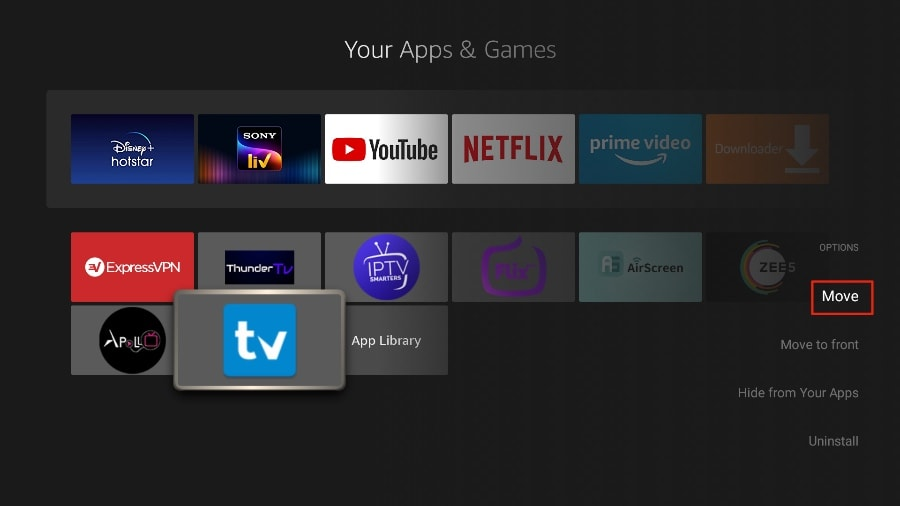
To make IPTV streaming more convenient, move TiviMate to a prominent position on your Fire Stick. Use the “Move” option to bring it to the front for quick access—ideal for IPTV services like getxtremeiptv.
5. Move TiviMate to the top row and then press the “Select” button on your remote to confirm the new location.
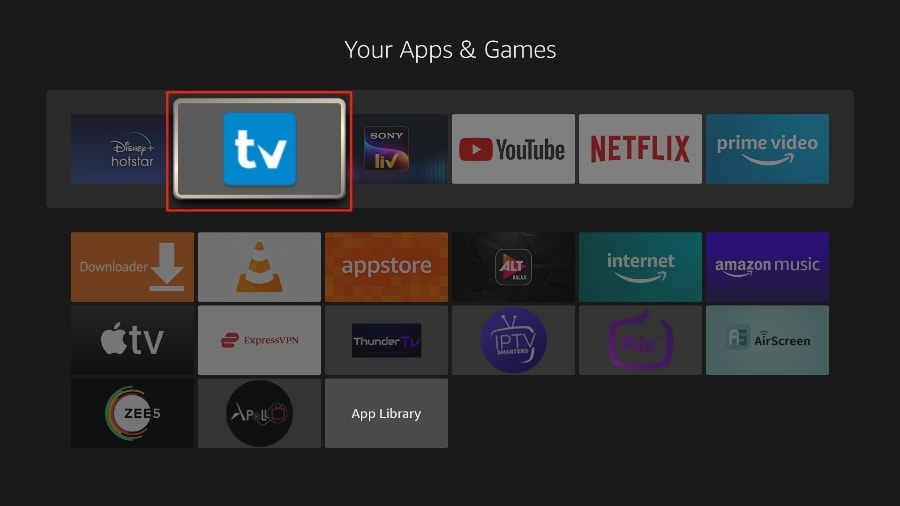
6. Jetzt können Sie bequem auf den TiviMate Player von Ihrem FireStick-Startbildschirm aus zugreifen. Es ist nicht mehr notwendig, jedes Mal durch ein Menü zu navigieren.
For an optimal IPTV streaming experience, place TiviMate at the top of your Fire Stick apps list. Users of services like getxtremeiptv can then launch their IPTV player directly from the home screen.
6. Now you can easily access the TiviMate player from your Fire Stick home screen. There’s no need to navigate through a menu every time.
WIE RICHTE ICH TIVIMATE EIN
1. Open the TiviMate app.
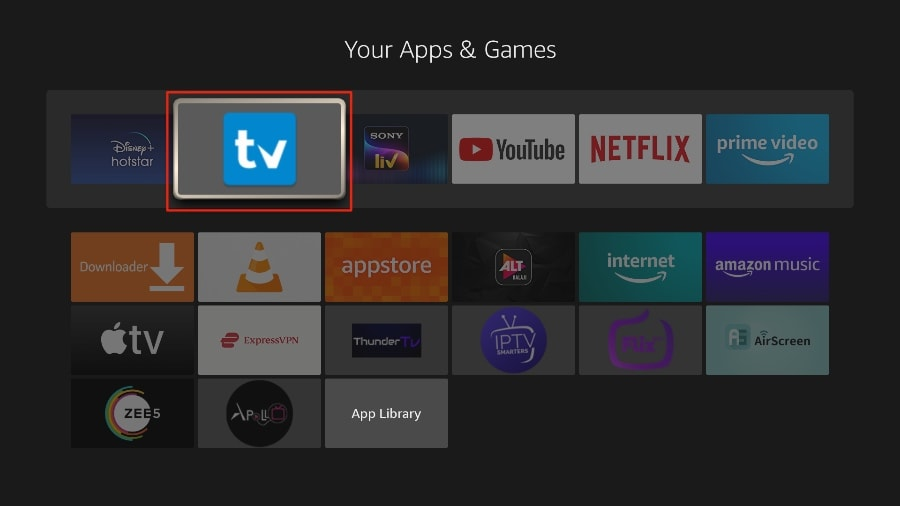
To use IPTV on your Fire Stick, open TiviMate from the app menu. This setup is perfect for getxtremeiptv users.
2. Select “Add Playlist.”
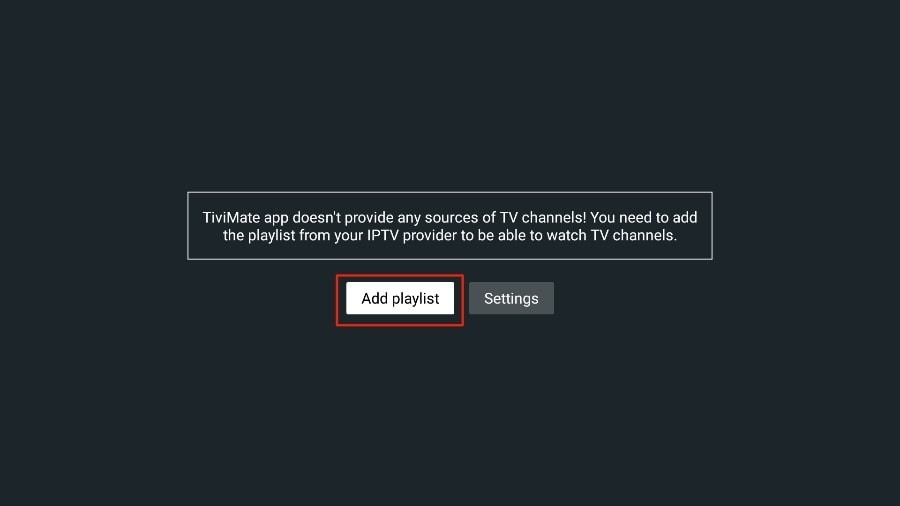
To watch IPTV on your Fire Stick, add your playlist to TiviMate. Getxtremeiptv users can enter their M3U link here.
3. TiviMate will prompt you to add a playlist using an M3U link, Xtream code, or a Stalker portal. Select “M3U Playlist.”
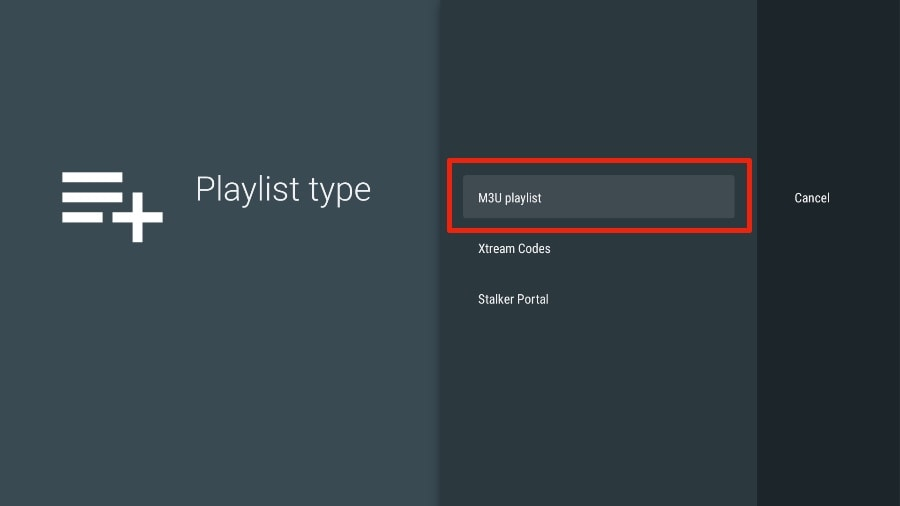
To use IPTV on your Fire Stick with TiviMate, select ‘M3U Playlist’ and enter your IPTV login credentials. getxtremeiptv users can retrieve their M3U link from their provider.
In this article, we’ll use an M3U link to play an IPTV service in the TiviMate app. When you sign up for our IPTV service, you’ll receive an email with the login information and an M3U link. If you don’t receive an M3U link, please contact our customer support.
4. TiviMate will ask for your M3U link. Enter your M3U link and then tap “Next.”
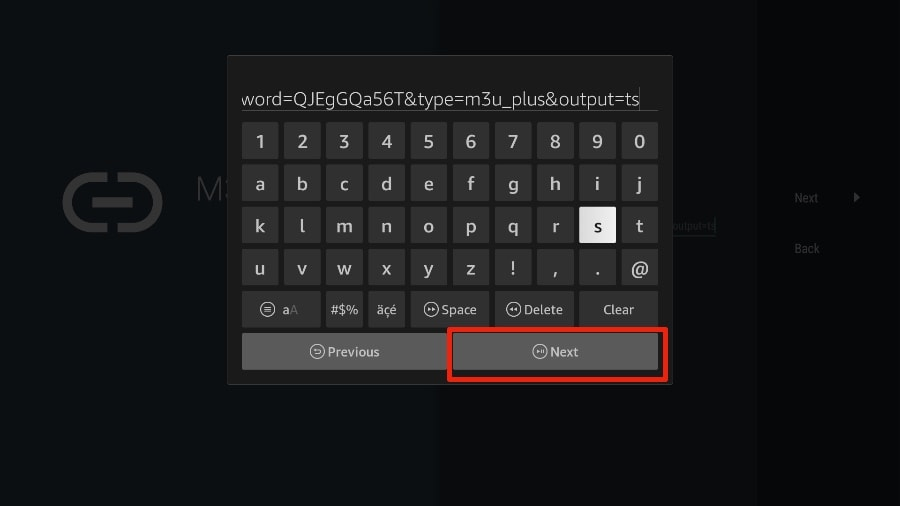
To complete the IPTV setup on your Fire Stick, enter your M3U link into TiviMate. getxtremeiptv users can retrieve their M3U URL in the customer area.
5. TiviMate will load the IPTV service and provide an overview of the number of available channels and movies in your IPTV package.
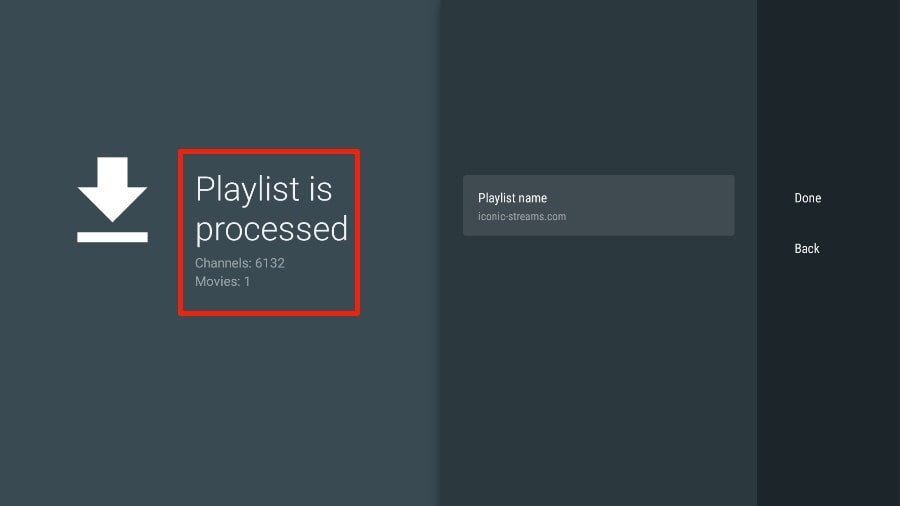
TiviMate processes the IPTV playlist on Firestick and displays the number of available channels and movies in getxtremeiptv.
6. Enter a name for the playlist.
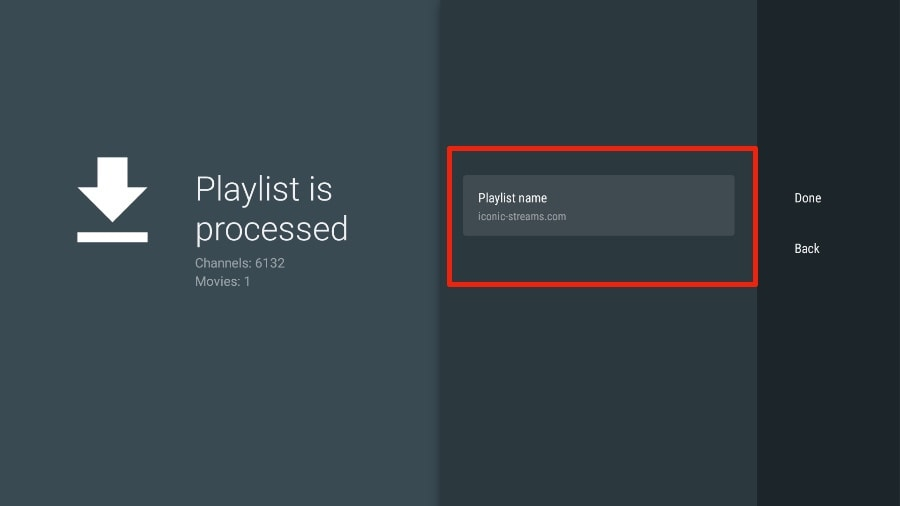
TiviMate prompts the user to name the playlist on Firestick after the IPTV channels have been processed in getxtremeiptv.
7. Once the playlist has finished processing, select “Done.”
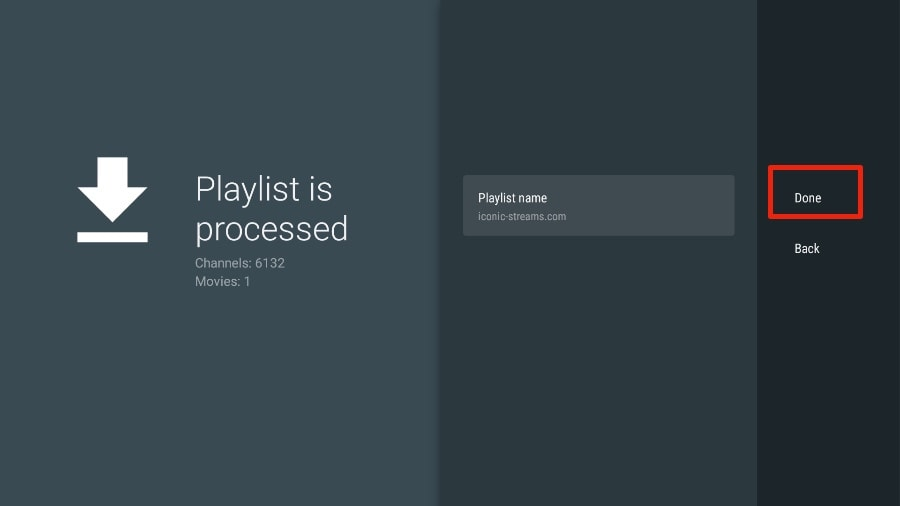
The final step in setting up TiviMate on Firestick is for the user to confirm the IPTV playlist for getxtremeiptv by selecting ‘Done’.
After one to two minutes, you will see the IPTV service content appear in the TiviMate app.
Our IPTV service includes a dedicated EPG (Electronic Program Guide), as shown below.
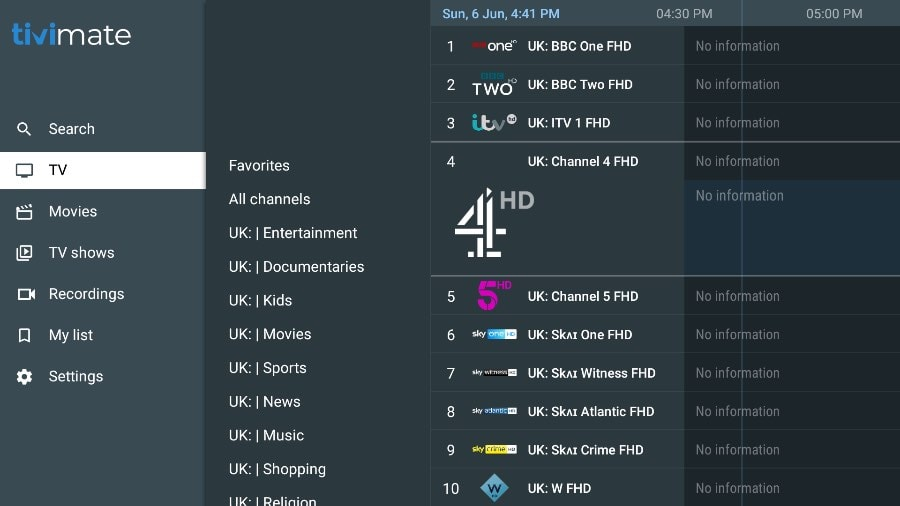
The TiviMate IPTV app displays an electronic program guide (EPG) and a list of UK channels to help users navigate IPTV services on getxtremeiptv.
If you don’t see an EPG in the TiviMate app, check if it’s enabled in the app’s settings.
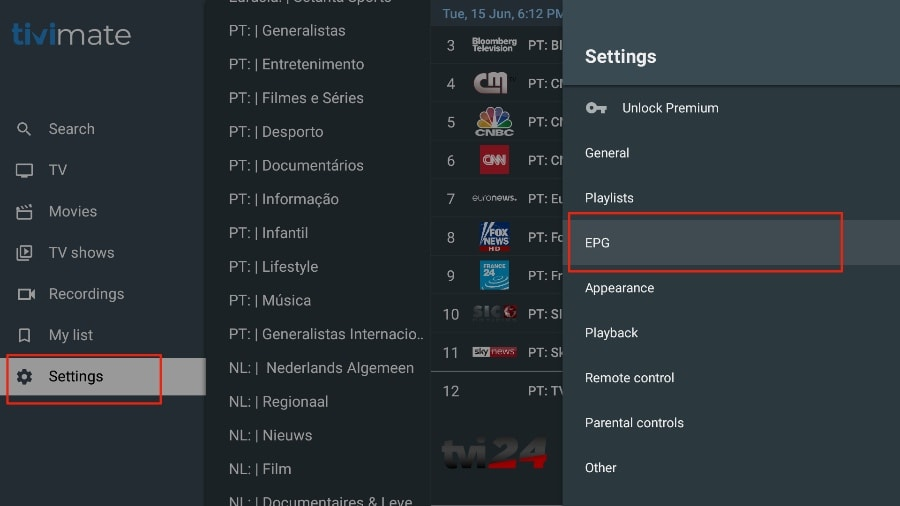
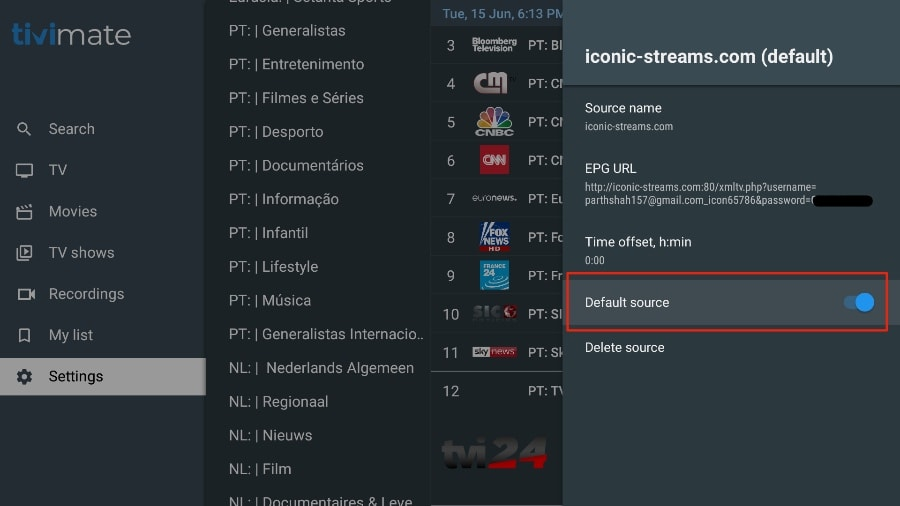
Enabling the default source in the TiviMate IPTV app ensures that channels from your selected provider, such as getxtremeiptv, are loaded.
As mentioned earlier, TiviMate’s core features require a paid subscription. You must pay for the premium version to use TiviMate to its full extent.
If you attempt to access a premium feature without a premium account, TiviMate will prompt you to upgrade to the premium version. For example, if you try to add a channel to your favorites list, TiviMate will ask you to update the app. If you wish to continue using the free version, you can click “Cancel” and continue using the free TiviMate app on your Fire Stick.
To purchase the premium version, you must use the TiviMate Companion app from the Google Play Store.
The TiviMate app subscription is not included in our plans.